Interactive terminal browser
Browse and search your vault from the terminal, inspect document details, and move documents to or from recoverable trash. Start the terminal user interface (TUI) with:
The TUI uses the same authenticated daemon API as the CLI. It starts or reuses the daemon, which owns the database and stored content. Before each request, the TUI finds or restarts a compatible daemon. Leaving the TUI open does not keep an otherwise idle daemon running. See Daemon.
Browse and inspect documents
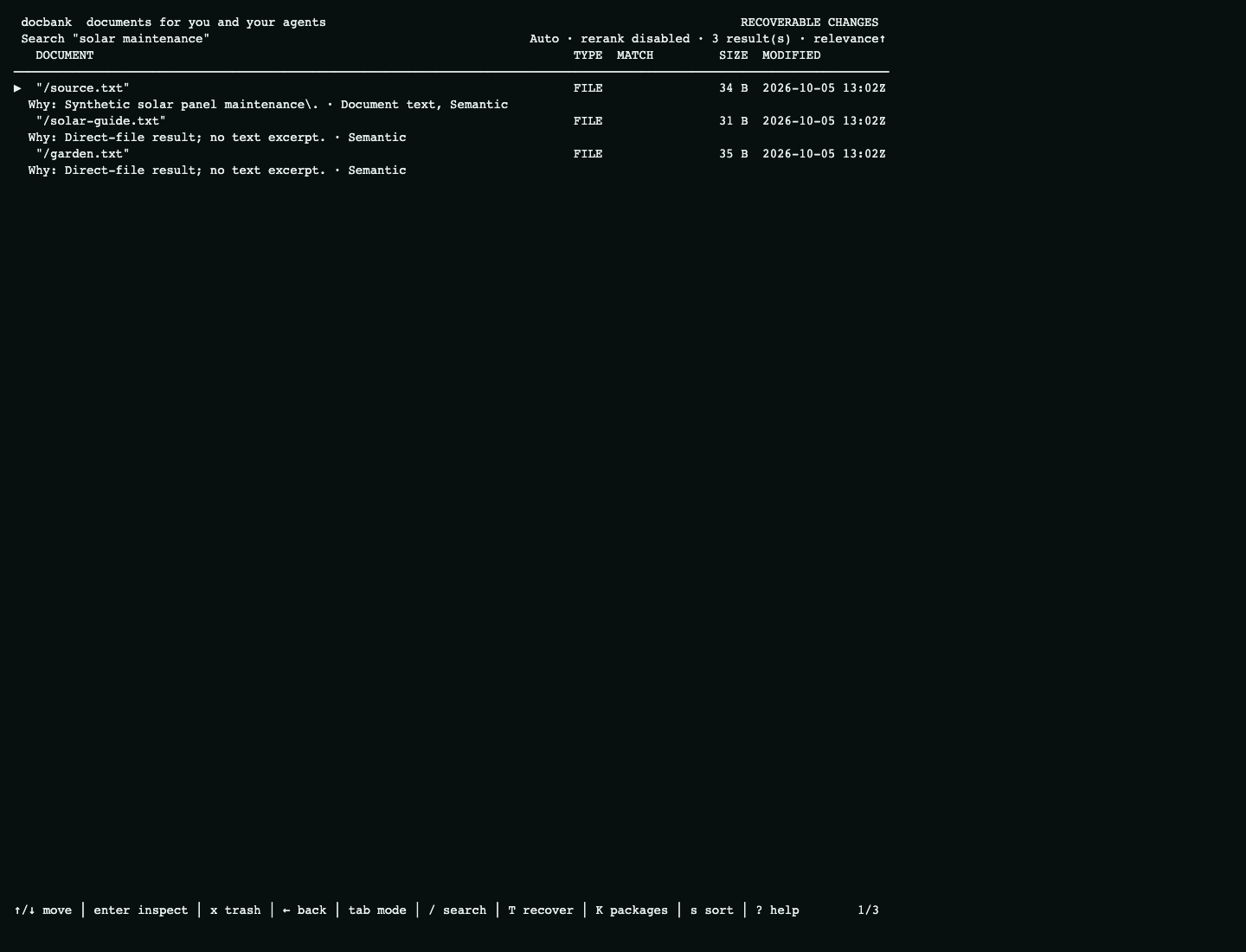
The main view is a full-width document table. At ordinary terminal widths it shows each document's name, type, size, and UTC modification time. Search results also identify the match kind when space permits. Narrow terminals hide secondary columns first so the document name stays readable.
Press i to leave the table temporarily and inspect the selected document's authority: its complete stable node selector, path, revision, and modification time. For a file, the view adds its version, SHA-256 identity, exact size, and media type. The same view lists every assigned tag name with its stable UUID, so you can tell a renamed tag from a different tag. Long values wrap instead of being truncated.
Read permanent history
Press a on any selected node to open its permanent audited history. The timeline is newest first and shows when each event was recorded, what happened, and the primary path, version, or attached-metadata change. Press Enter to inspect the complete event ID, operation and scope IDs, revisions, path states, version identities, and typed tag or provenance details. A node outside an audit scope is labeled as such instead of showing an empty timeline.
Inspect jobs, storage, and backups
Press J to inspect daemon-owned background work without leaving the document view. The activity screen shows each stable job name, whether it is running, completed, failed, or cancelled, and its start and finish times. Inspecting a job shows its complete final failure text. Refresh asks the daemon for a new snapshot. Closing the screen returns to the same document selection. The current job report shows lifecycle status, not completion percentages.
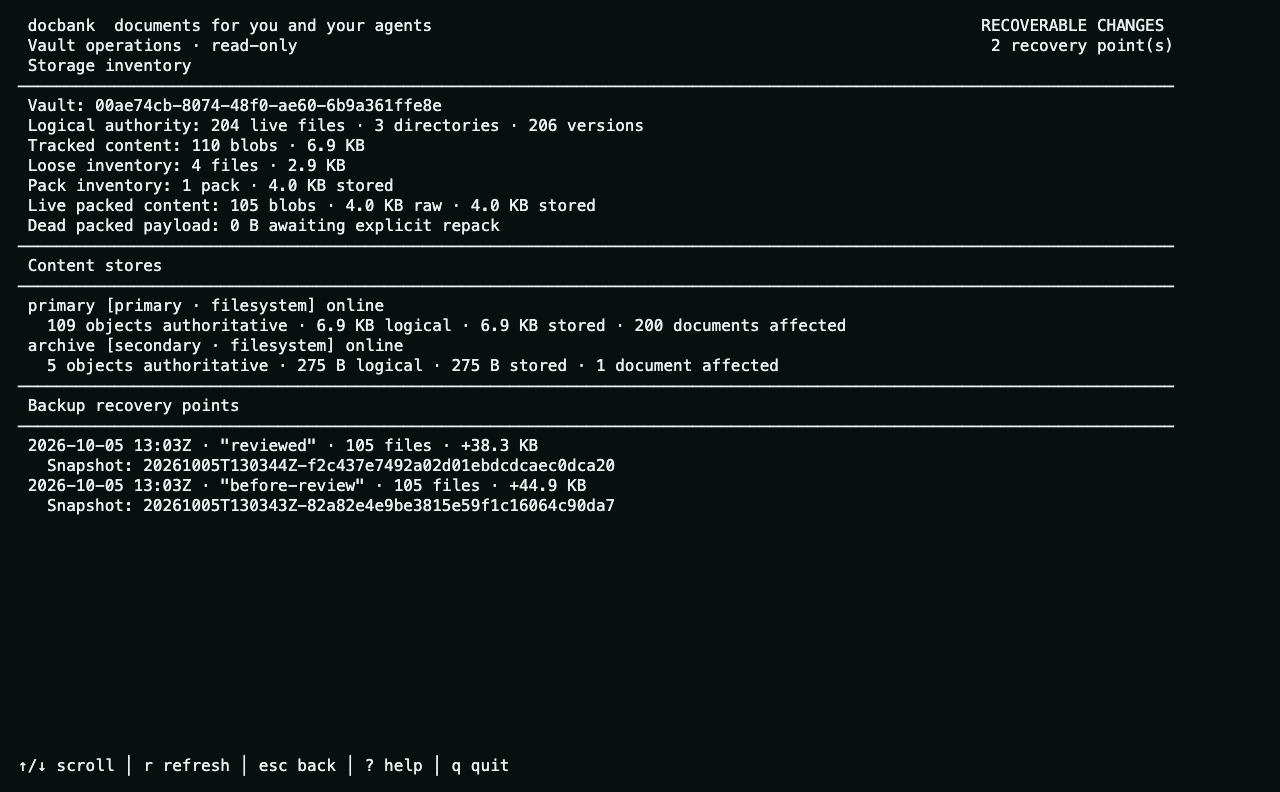
Press O for a read-only operational summary. It separates what the catalog records from the physical loose-file and pack inventory, including live packed content and dead packed payload awaiting a repack. The same screen lists the configured backup repository's recovery points with their creation time, tag, snapshot ID, file count, and newly added bytes. Storage status is still shown when no backup repository is configured. The two results are independent and report their own errors.
Trash and restore documents
Press x to review moving the selected live node to recoverable trash. The confirmation names the escaped path, stable node ID, and exact revision that will be changed. If the node changes concurrently, the request is rejected instead of being applied to newer state. The dialog also says that the node remains restorable and no content bytes are reclaimed.
Press T to browse independently restorable trash roots, newest first. Enter opens a second revision-bound confirmation. A successful restore reports the live path the daemon selected after collision suffixing or origin-parent fallback. A restore does not promise the old path. The TUI does not offer permanent deletion or physical reclamation. Use the preview-first CLI or authenticated HTTP workflows for those.
Browse load-file packages
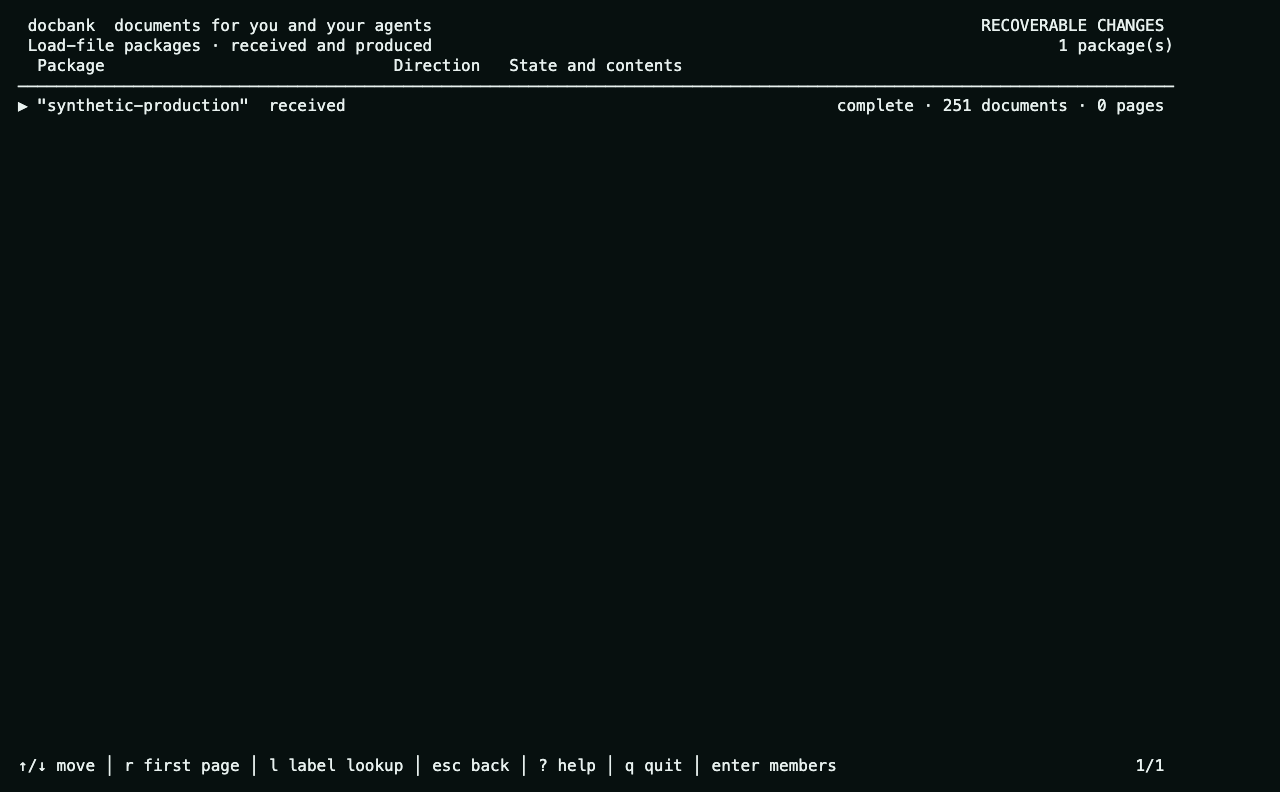
Press K to browse received and produced packages. Press Enter on a completed package to view its members, or l to look up an exact Bates label within the selected package. Label results show the label set, provenance, and page number when verified.
Each page holds at most 250 packages or members, or 100 label matches. Counts
describe the current page. A + means another page is available. Press
n to replace the current rows with the next page. Press r
to refresh from the first page.
Use ↑/↓ or k/j to move through any of these lists. PgUp/PgDn scroll by a screen, and Home/End select the first or last row on the current page. Press Esc to leave label results, members, or the package browser.
Keyboard controls
| Key | Action |
|---|---|
| ↑/k, ↓/j | Move between documents |
| Enter or → | Open the selected directory |
| Enter on a file, or i | Inspect complete document authority |
| x | Review moving the selected revision to recoverable trash |
| T | Browse and restore recoverable trash roots |
| a | Browse the selected node's permanent audited history |
| J | Inspect daemon background jobs and failures |
| O | Inspect storage inventory and backup recovery points |
| K | Browse load-file packages, their members, and exact Bates labels |
| ←, Backspace, or Esc | Return to the parent directory or leave search results |
| / | Search live names and extracted text |
| s | Cycle the sort column: name, size, and modification time |
| v | Reverse the current sort direction |
| r | Refresh the current directory or search |
| ? | Show keyboard help |
| q or Ctrl-C | Quit |
Within audited history, n/→ loads the next older page and p/← returns to a cached newer page. Escape returns to the same directory or search result and selected document. Each page holds at most 100 events. The heading reports its position in the complete history.
Search and result limits
Search follows the same rules as docbank search. Name matches
precede content-only matches, and content is available only for supported
documents whose current bytes completed verified extraction. Results say
whether the match came from the name or content. Relevance order is the search
default. Pressing s switches to a column sort, and cycling through
the columns returns to relevance. The TUI loads at most 1,000 directory entries
or search hits and says when more exist. Use CLI or HTTP pagination to list
complete directories. Search has no continuation cursor. Narrow a truncated
query as described in
Searching.
Current limits
The search box accepts text only. Use docbank search or HTTP for tag,
media-type, directory, and modification-time filters. Saved query and
highlight definitions are managed through the
HTTP API.
Press Tab while searching to cycle through Names and text, Auto, Lexical, Semantic, and Hybrid. Auto uses Hybrid when an embedding binding is available and otherwise uses the lexical API mode. Semantic and Hybrid require a binding. Press Ctrl-R to toggle reranking when the profile permits it. Changing the mode or reranking setting reruns the latest submitted query, including while results are still loading. Base rows remain visible while reranking runs, and a failure keeps them with its cause. Processing failures fall back to Names and text with the failure shown.
Other mutations, permanent deletion, permanent-audit enrollment, independent verification, backup creation/verification/restore, and storage maintenance are not available in this interface. Use their CLI commands or authenticated HTTP endpoints.
The O operations screen loads storage and backups independently. Its storage section lists every physical store's role, backend kind, observed health, authoritative object count, logical and stored bytes, affected live documents, and any sole-authority objects without a readable alternative. It is read-only and does not expose binding paths, endpoints, credentials, ownership epochs, takeover, repair, or placement controls.