Web application
Use the local web application to find documents, read any saved version, and export the records you select. You can also import files and email, organize them with tags, and review configured processing before it runs. Start it with:
Docbank starts or reconnects to the vault's daemon and opens the browser. The daemon is the background process that owns the vault. The browser uses its authenticated HTTP API. It does not open the database or stored files directly. The daemon accepts connections only from the local machine.
Choose a task:
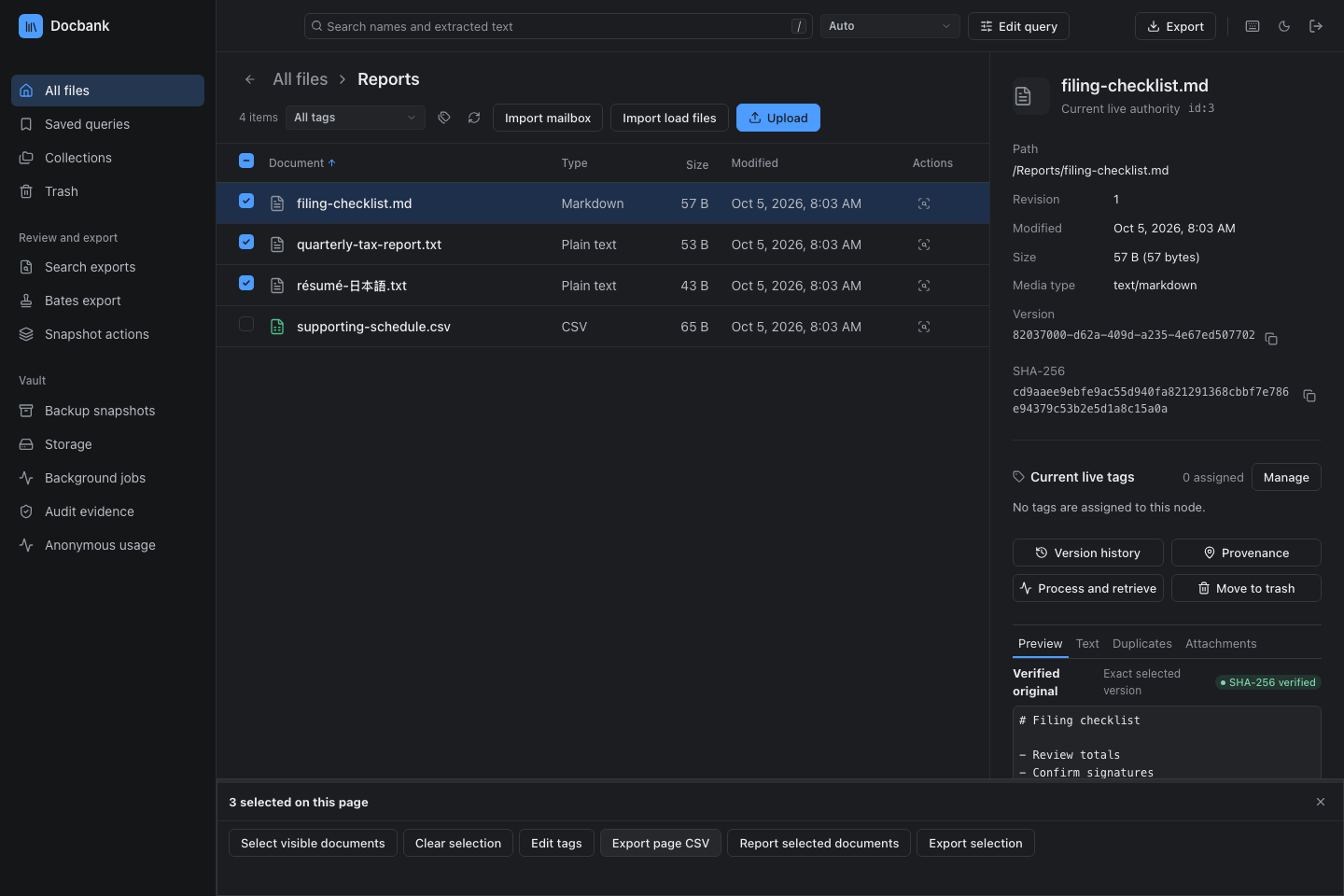
- Browse the vault, use keyboard shortcuts, inspect document details, or select documents on this page.
- Upload files, import email, or download content.
- Process a version and read its text.
- Read archived email and follow attachments.
- Manage tags and search text.
- Run complete queries with exact paging and facets.
- Export a verified ZIP from selected documents or a frozen query.
- Move documents to trash or restore them.
- Inspect versions and source records.
- Read permanent history or verify its evidence.
- Inspect background jobs, storage, or backup snapshots.
The browser has limited permissions. See Browser authentication for their scope and Current limits for workflows that require the CLI or another API client.
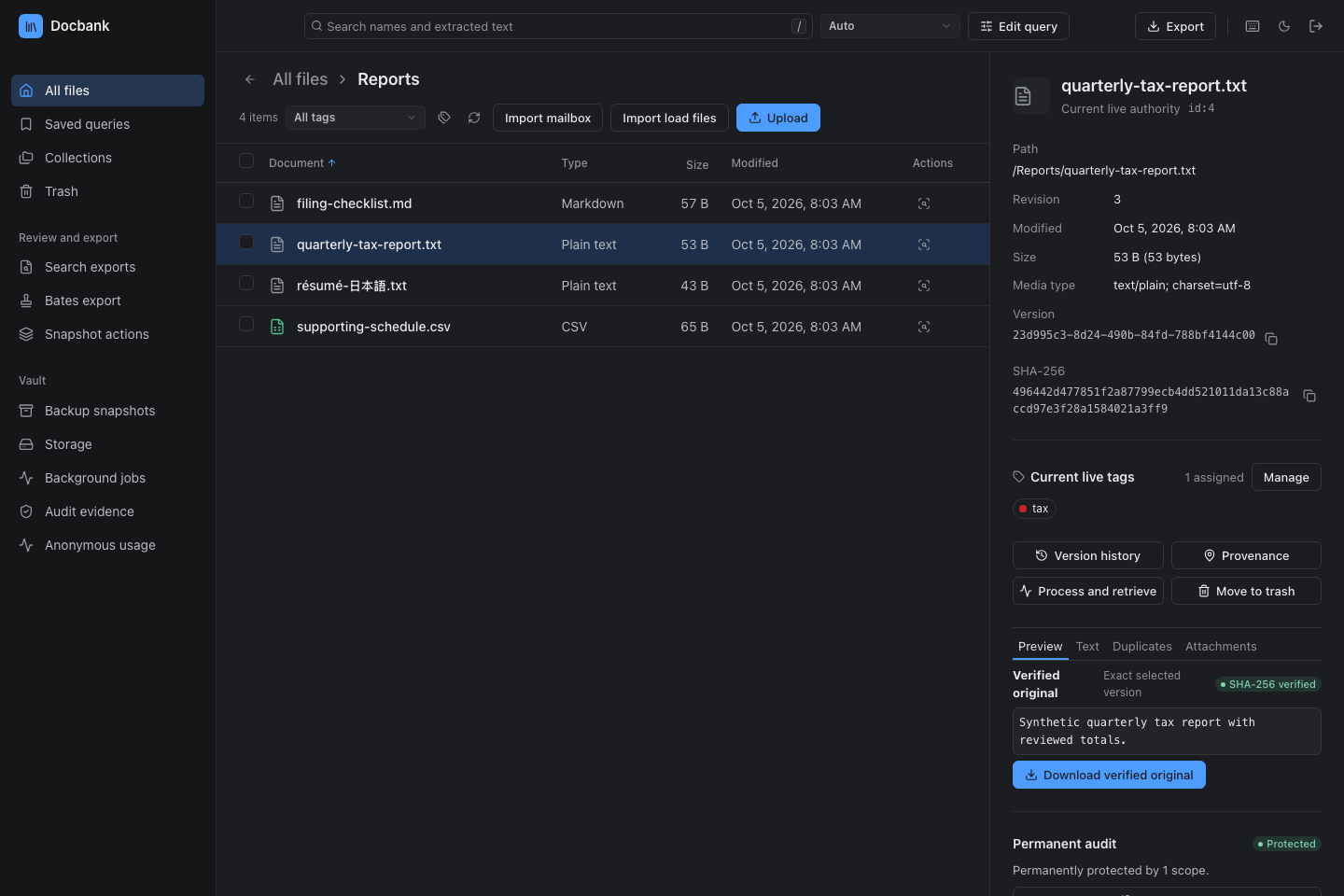
Select a document to see its stable identity and content hash beside the table.
Browse the vault
Documents and Photos at the top of the sidebar switch workspaces. Photos replaces document navigation with Library and keeps your place until the session locks. See Browse photos.
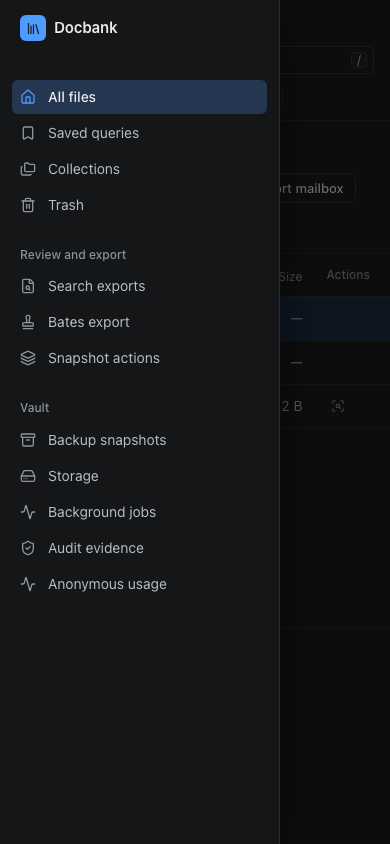
Use the labeled sidebar for All files, Saved queries, Collections, and Trash. Review and export holds search reports, Bates exports, and snapshot actions. Vault holds backups, storage, jobs, audit evidence, and telemetry settings. On a narrow screen, Open navigation reveals the same menu.
Folder breadcrumbs let you jump to any parent. Each file has an icon and a plain type name, so you do not need to recognize its media type.
- Click a row once to inspect it. The authority card updates without opening or downloading the file.
- Double-click a folder, select it and press Enter, or use Open folder in the authority card to navigate into it.
- Use the back arrow to restore the previous folder or search view, including its inspected row and sort order.
- Click Document, Size, or Modified to sort. Click the active heading again to reverse its direction. Directories remain grouped ahead of files in folder views.
- Use refresh to reload the current directory by its ID. If another client renamed or moved that directory, the browser adopts its current canonical path.
The authority card is the details panel for the selected file or folder. A node ID identifies that entry even after a move or rename. Its revision is a change counter that Docbank uses to reject changes based on an outdated view.
The browser selects the first row after loading a folder. A selected directory shows its path, revision, and modification time. A selected file also shows its exact logical size, media type, current-version UUID, and SHA-256 content identity. The copy buttons copy the complete UUID or digest even when the card wraps it across lines. Every selected node also shows its assigned tag names. Hovering a tag shows its UUID and vault-wide assignment count. The tag stack expands in place when a node carries more than six tags.
Use keyboard shortcuts
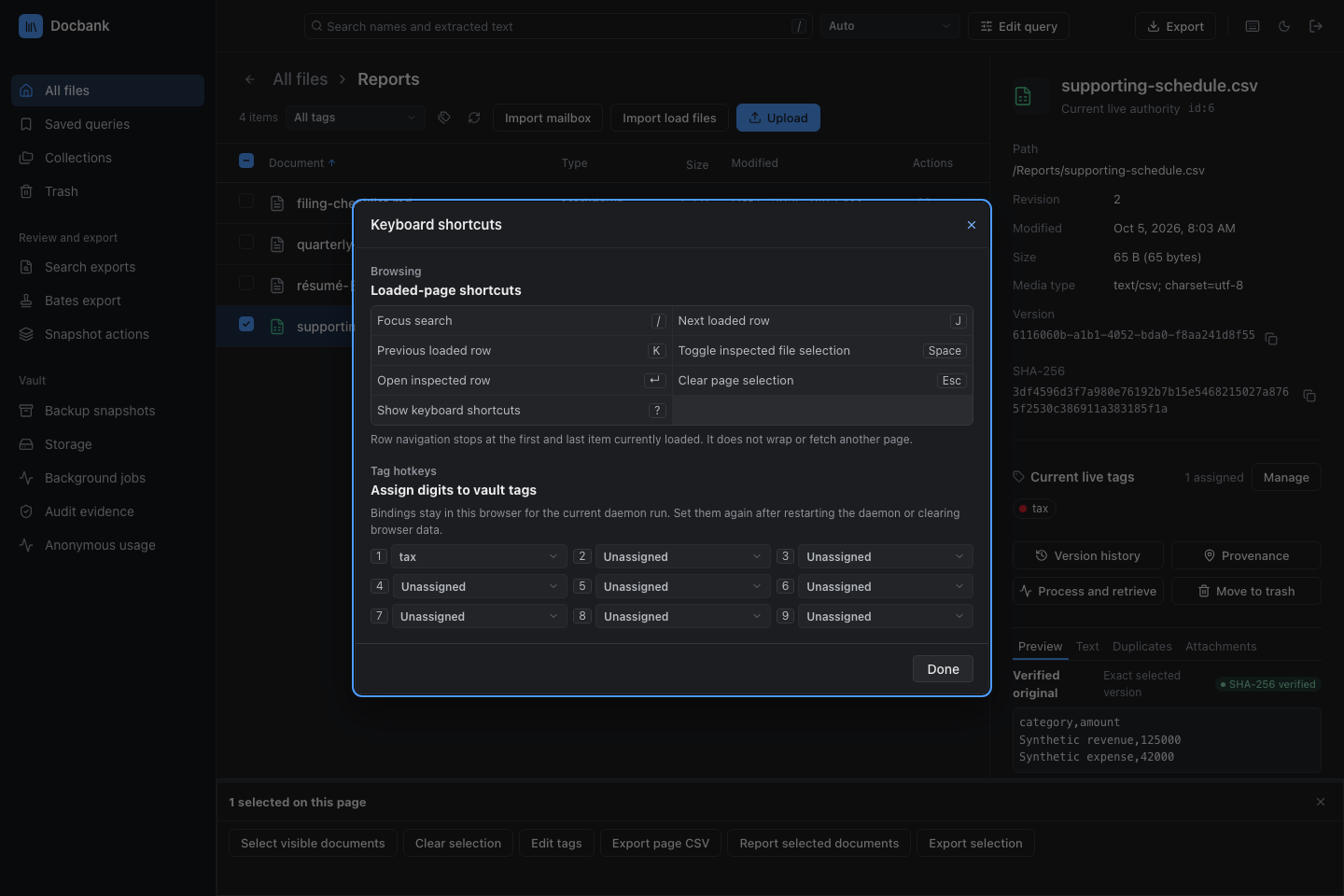
Press ? or choose the keyboard button in the top bar to see every shortcut. Press / to focus search, j or k to inspect the next or previous loaded row, Space to check or uncheck the inspected file, Enter to open the inspected folder, and Escape to clear page selection. Row navigation stops at the loaded page boundary and never fetches another page.
The same help dialog can assign digits 1 through 9 to tag definitions. Bindings are separate for each vault and stay in this browser for the current daemon run. Reopening the page keeps them. Restarting the daemon or clearing browser data requires setting them again.
Pressing a configured digit toggles that tag on the inspected file only, regardless of checked documents. Docbank waits for the file's complete assigned-tag list and sends its displayed revision with the change. A stale revision remains visible as an error and is never retried against newer state.
App shortcuts pause while a text field, control, or dialog owns the keyboard.
Select documents on this page
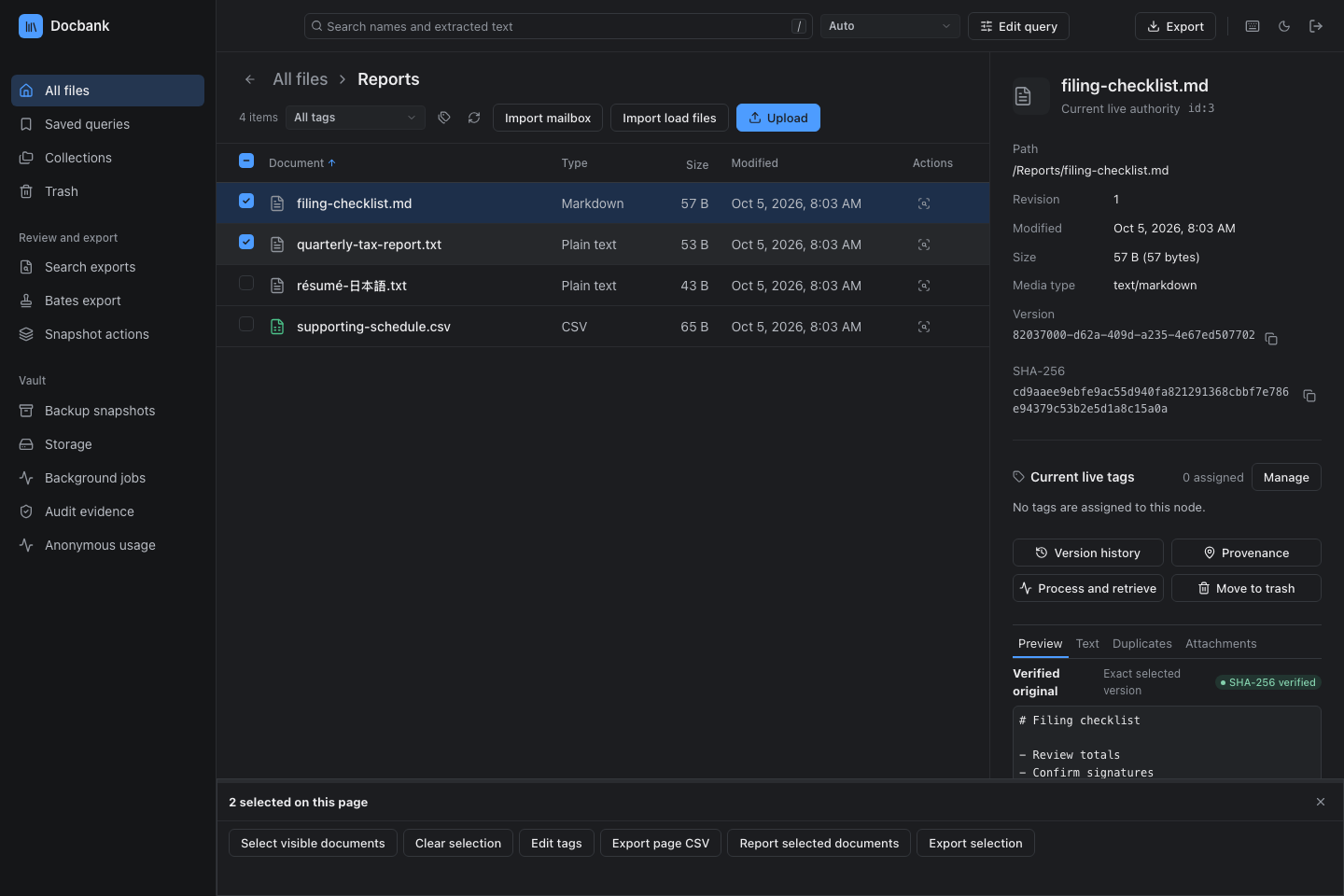
Check a document's checkbox to mark it without changing the document shown in the authority card. The bottom dock shows how many documents are checked.
- Hold Shift while clicking another checkbox to select or clear a range in the displayed sort order. With the keyboard, focus a checkbox and press Shift+Space.
- Use the header checkbox or Select visible documents to check the files currently shown. Folders remain available for navigation and are not selected.
- Choose Clear selection or close the dock to clear the checked documents.
Selection covers only the loaded page, even when more results exist. Changing the folder, query, or tag clears it when the new rows arrive. If an error leaves the previous results on screen, their selection stays. Refreshing the same view keeps only checked documents that are still visible. Back navigation and ending the browser session also clear the selection.
Export selected rows as CSV
Check file rows and choose Export page CSV. The download preserves their displayed order and includes the metadata already loaded, such as document IDs, versions, paths, sizes, timestamps, and hashes. Unavailable fields stay blank. It does not download document contents, fetch additional metadata, or include results beyond the loaded page. Formula-leading text is escaped for spreadsheet imports, and international filenames are preserved.
Edit a complete query
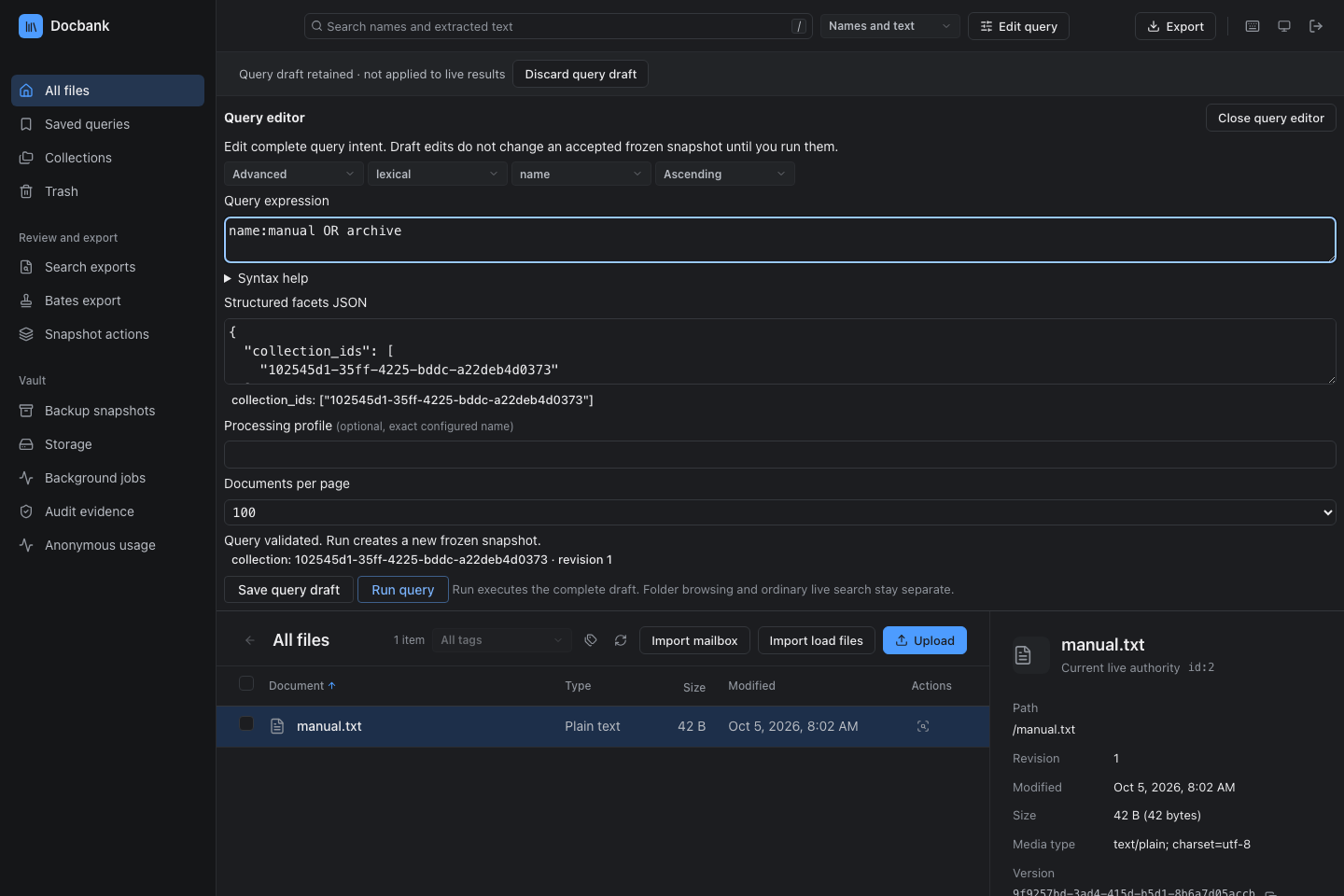
Choose Edit query to write a complete expression, select simple or advanced syntax, and edit its mode, sort, and structured facets. Facets stay separate from field operands in the expression. Their summaries show the constraints you entered. Validation does not move operands into hidden filters.
The daemon validates each edited draft after a short pause. It resolves saved, tag, and collection references and reports their observed revisions. Errors remain visible. Focus query error selects the reported part of the expression. A newer edit cancels an older validation request.
Save query draft opens the saved-definition editor with the entire draft. Open query beside a saved query opens it here. From an import collection, New query for this collection starts a new draft scoped to that collection's identity. Closing the query editor keeps the draft in the tab and URL. Discard query draft removes it.
If the draft has malformed input, such as incomplete facets JSON, correct it or choose Discard query draft before closing. The editor stays open so those unfinished edits are not lost.
Validation does not execute a search. Once the draft is valid, Run query creates a frozen result through the complete query endpoint. Ordinary name/content search remains separate and does not inherit draft constraints. See field-aware query syntax.
Work with a frozen query
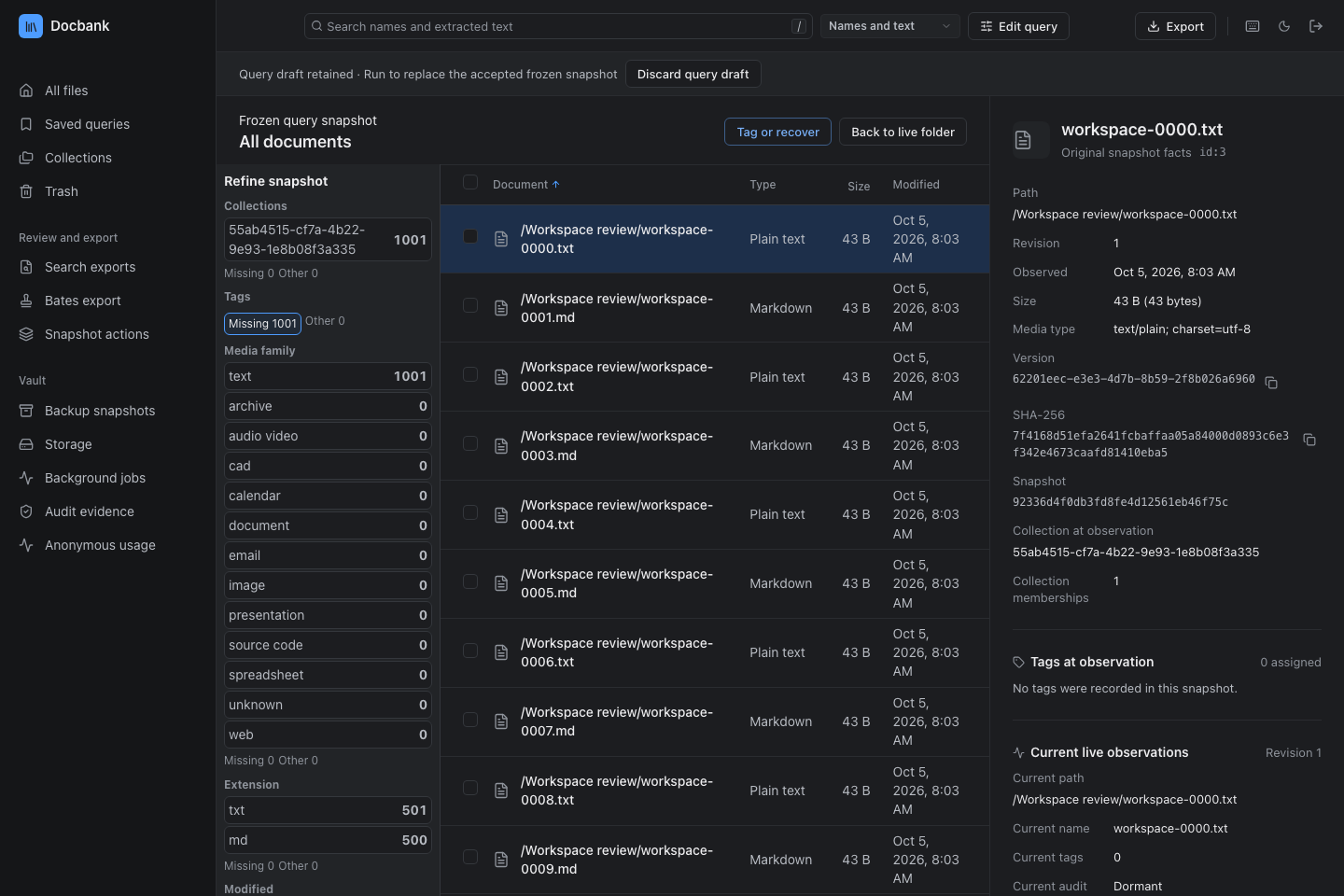
A completed run becomes the accepted frozen snapshot for the tab. Draft edits remain separate until you choose Run query again. Choose 50, 100, or 250 documents per page before the run. The workspace shows exact document and byte totals, previous and next page controls, and the node, content version, hash, size, revision, and tags observed when the snapshot was created. Later vault changes do not replace those rows. Live-folder keyboard shortcuts stay inactive while the snapshot is open.
Select a frozen row to inspect those original facts and the selected version. The same card loads current path, revision, tags, provenance, and audit status separately as live observations. A later rename, retag, or content replacement therefore does not rewrite the snapshot facts or substitute the new head for preview and download.
Use Refine snapshot to inspect collection, tag, media-family, extension, modified-time, size, text-coverage, and duplicate facets. Choosing a supported facet or changing the query creates a new snapshot. It never splices live results into the accepted one. An unavailable facet says why instead of presenting a zero count.
Snapshot handles last for one daemon lifetime, up to 15 minutes idle and 30 minutes total. Locking the browser session or stopping the daemon revokes them. If paging reports that the snapshot is gone, run the complete query again and use only the new snapshot and its cursors.
Read archived email
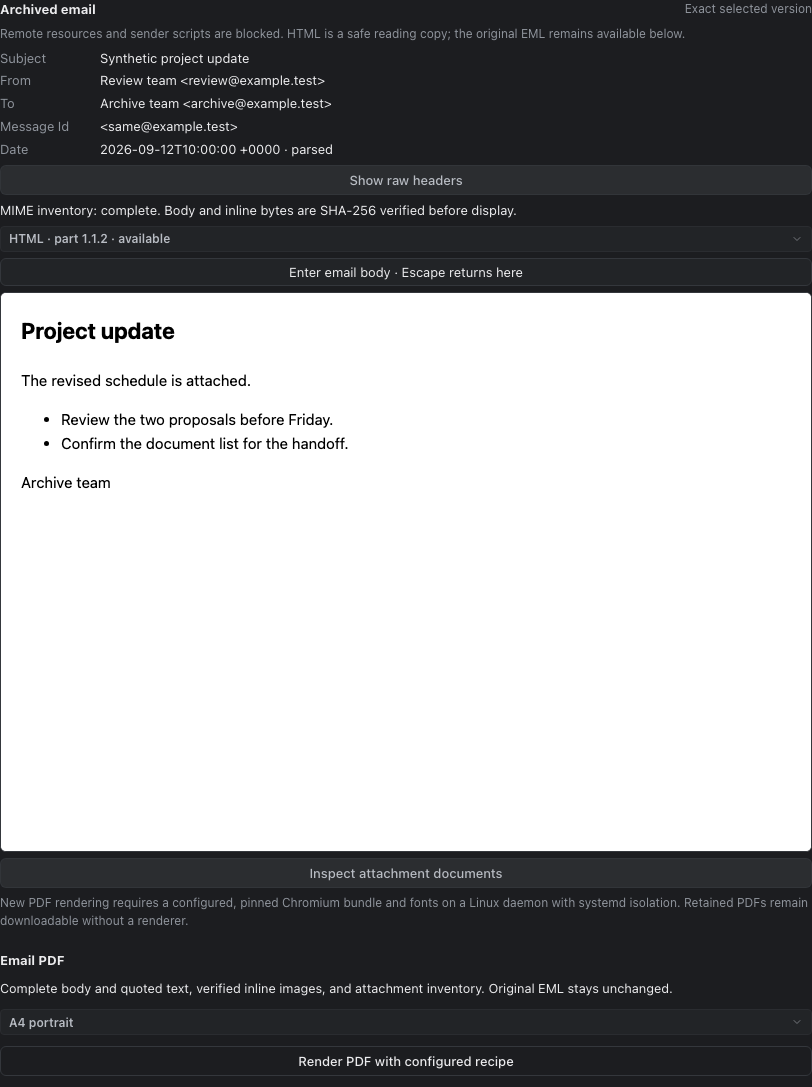
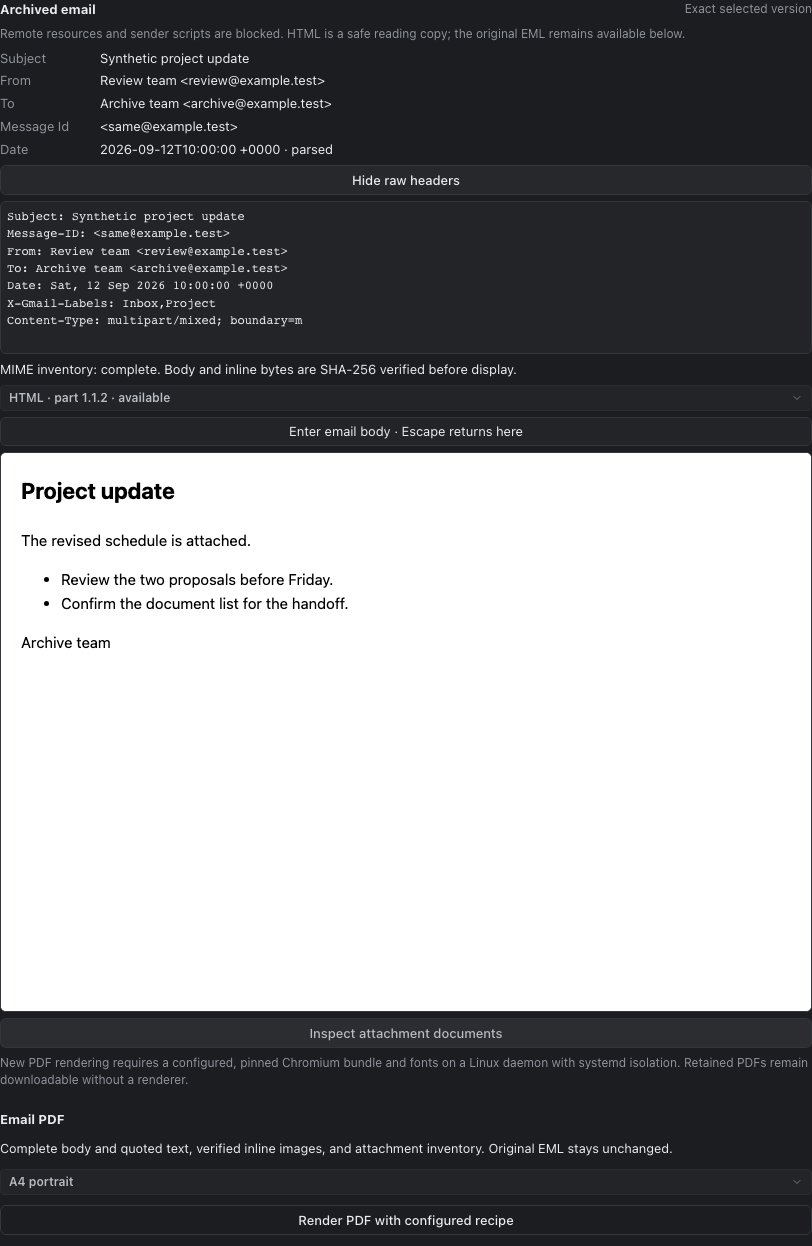
Choose Email in the content inspector for an EML document whose selected version has decoded metadata. Read decoded headers, inspect the original ordered headers, and switch between HTML and plain-text body alternatives. Missing or invalid sender dates are labeled as such. Pending decoding and incomplete MIME inventories do not appear as complete messages.
HTML opens in an isolated frame. Sender scripts, forms, links, styles, and remote resources are disabled before display. Blocked or ambiguous images have visible placeholders. Only verified PNG and JPEG MIME parts in the body's nearest related group can display inline. Press Escape inside the frame to return to its entry button. Long messages scroll, and Show quoted text expands quoted content without changing the original or the full-body PDF source.
The viewer accepts HTML bodies up to 16 MiB. Its additional display limits are
100,000 markup candidates before parsing, 100,000 HTML nodes, 128 nesting
levels, and 32 MiB of serialized output. Literal < characters also count
toward the conservative markup limit.
Inline images are limited to 128 occurrences, 5 MiB and 8 million pixels per image, 8,192 pixels per side, and 16 MiB and 32 million pixels in aggregate. PNG/JPEG limits and unsupported image formats produce visible placeholders. Body limits report an unavailable operation instead of silently truncating the body.
Inspect attachment documents opens the attachment navigation described below. Inline display and attachment document publication remain separate. Download verified original downloads that EML version unchanged. The existing PDF action downloads retained PDFs or uses the configured renderer, including the complete chosen body and quoted text. New rendering requires the pinned local Chromium/font configuration. An unavailable renderer reports its reason.
Follow email attachments
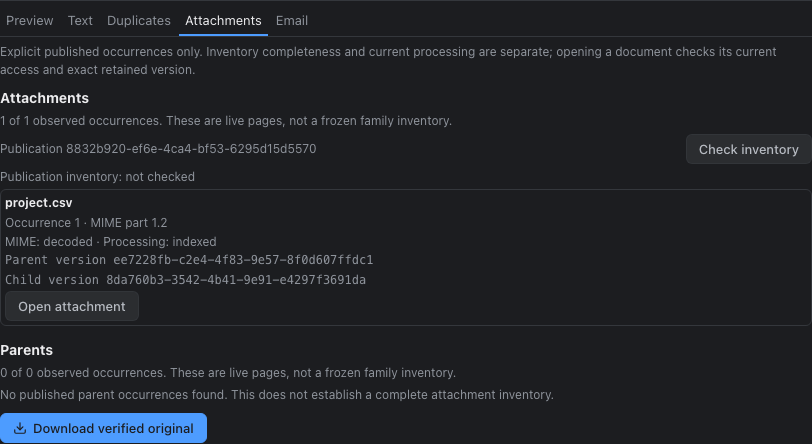
Choose Attachments in the content inspector to see published attachment occurrences and incoming parent messages for the selected version. Repeated filenames or identical bytes remain separate occurrences, identified by their MIME part and publication order. Load more requests another page. The view stops at 1,000 occurrences per direction rather than expanding an entire message family automatically.
Each occurrence separates its MIME decoding outcome from current processing status. Check inventory reads that publication's receipt and reports complete or partial inventory independently of indexing. An empty relation list, an unavailable read, or an unchecked receipt does not prove that a message has no attachments. Occurrences without a published child stay visible. The tab does not publish documents, start processing, or grant provider consent.
Open attachment and Open parent open that related version in its own context. Later content replacement does not substitute the live head or its media type for that related version. Preview, text, and download keep the usual byte verification and current-access checks. Missing or denied targets report an error without removing the occurrence.
Follow nested messages with Back to previous document, or choose Return to frozen document to restore focus to the original result. These steps do not rerun the query, change its snapshot membership, or check attachment rows. Ordinary live selections offer the same return path to the selected document.
Export a verified ZIP
Choose Export selection in the selection dock for the checked documents. The toolbar's Export opens the whole frozen query when one is active, or the documents on the current page otherwise. Folders are not export members. Exports support up to 100,000 documents and 50 GiB of role payloads.
Choose whether original files, retained text, and page images are required, optional, or excluded. A missing required role stops planning. An optional role records its unavailable status in the bundle. Preview export copies and checks every frozen page, then stores the selected versions and available role files. Later edits to the live query, tags, or current content do not substitute new members or bytes.
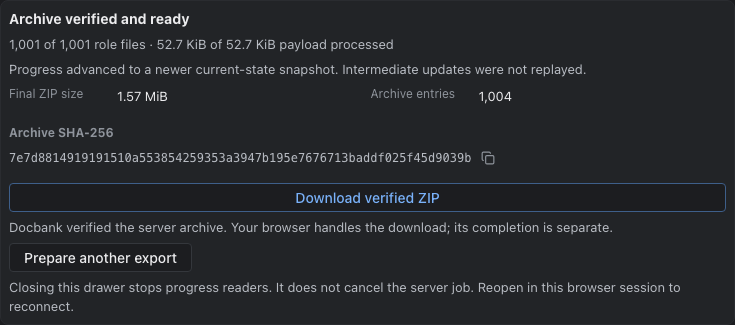
Review the document count, member hash, role availability, plan fingerprint, and expiry before choosing Start reviewed export. Role bytes estimate payload only. The final ZIP also contains metadata and archive overhead. Changing the source or role choices requires another preview. You can change the download filename at any time without repeating the preview. The filename applies only to the browser download, and bundle paths stay deterministic. Originals are not redacted or sanitized by annotation overlays.
The drawer offers Download verified ZIP only after it receives that job's verified archive receipt. It displays the final size and SHA-256 so you can check the downloaded file independently. The browser saves the archive directly. Docbank does not load the entire ZIP into browser memory. Check your browser's download list for local completion.
Closing the drawer stops its progress reader, not the server job. Reopen Export in the same browser session to reconnect to that job, or choose Cancel export to cancel it. A disconnected stream is not a completed export. Expired authority requires a fresh preview. Reloading or ending the browser session does not preserve the drawer's job handle.
Stamp selected pages with Bates labels
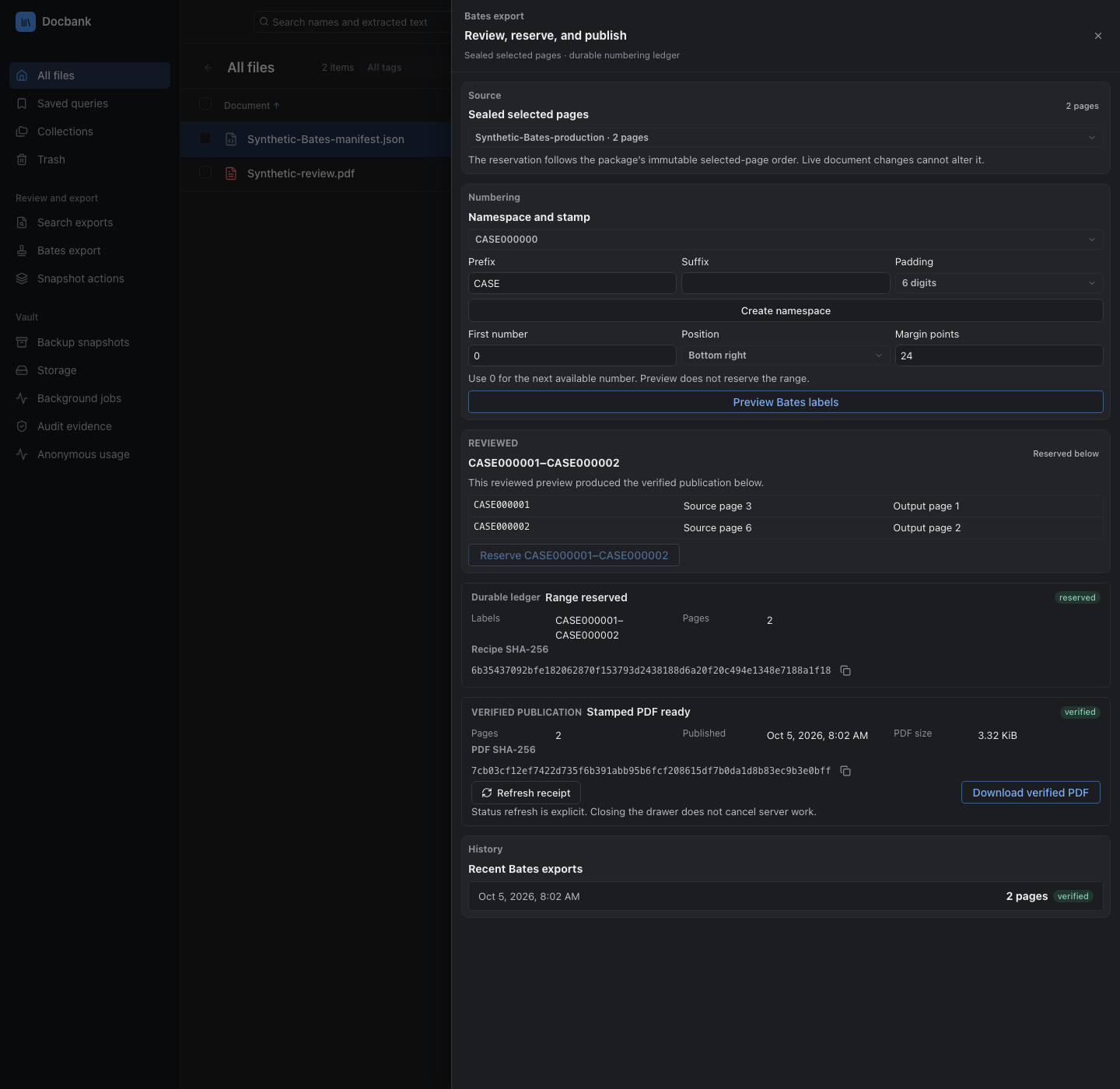
Open Bates export in the sidebar and select a sealed package. Bates labels are sequential identifiers stamped on PDF pages, often used when exchanging records for review.
- Create or select a label namespace, including its prefix and number width.
- Choose Preview Bates labels and inspect the proposed labels and pages.
- Reserve the displayed range, then choose Start Bates export.
- Wait for Stamped PDF ready, then choose Download verified PDF.
The output contains the package's selected pages. The stored page map keeps their original source-page numbers. A number that was reserved is never issued again, even if the export was abandoned.
Assign and remove tags
- Select a file or folder.
- Choose Manage beside its tags.
- Select an existing tag and choose Add tag, or remove an assigned tag.
The dialog lists assigned tags separately from available tags. It loads the first 1,000 definitions in name order, then displays related names in groups. The picker uses the same color for a tag wherever it appears. Use the arrow keys to navigate its options, Enter to select, and Escape to close it.
Every change is bound to the node ID and revision shown in the dialog. After success, the browser updates the node revision and the tag's vault-wide assignment count. It also refreshes the tag catalog and permanent-audit status. If another person, agent, or CLI command changed the node first, the dialog keeps the failed decision visible and asks you to refresh rather than applying it to newer state.
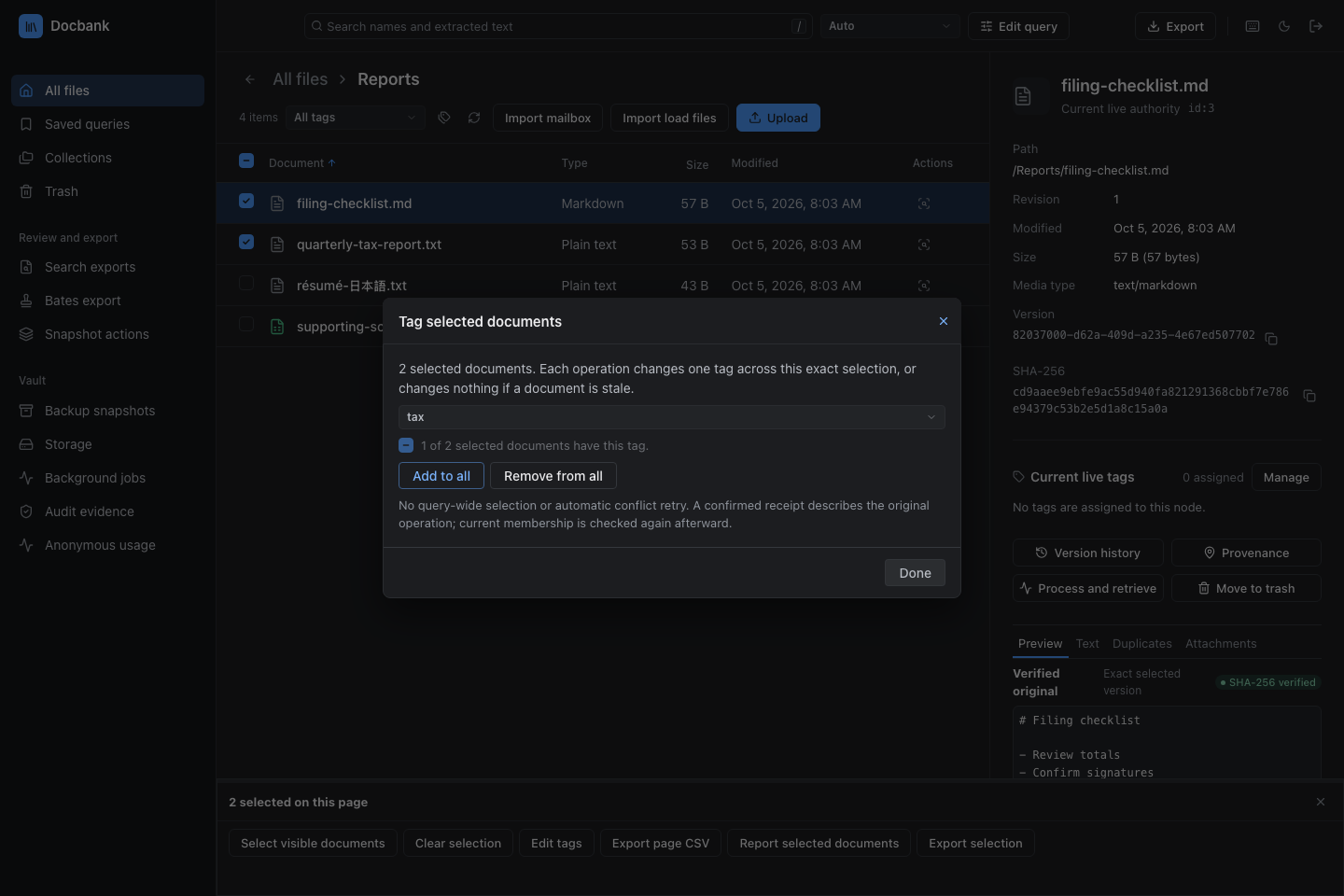
Tag selected documents
Use the document checkboxes to select files on the displayed page, then choose Edit tags in the selection dock. The picker shows whether all, some, or none of the selected documents have the chosen tag. Add to all and Remove from all apply one atomic, revision-checked operation to at most 1,000 documents. Folders and undisplayed query results are not included in page selection.
Keep the dialog open if the result is uncertain: Retry same operation reuses its original identity and revisions. A stale selection requires you to refresh. The browser does not retry automatically against newer documents. After confirmation, the browser reloads current observations. The retained receipt may describe an earlier successful operation. See selected-set tagging for retention and backup behavior.
Tag a frozen query
In a frozen snapshot, checkboxes select only documents on the visible page. Tag whole query instead captures every member across all pages, up to 250,000 documents, and prepares revision-checked batches of at most 1,000. The captured population does not expand when an untagged query starts receiving the tag. Completed changes appear as overlays while the frozen rows and facet membership remain unchanged.
New actions use confirmed tag revisions only when the receipts connect back to the frozen document revision. Other document changes still make it stale. Once prepared, an action keeps its original requests and expected revisions.
Before any prepared action can mutate the vault, save its recovery checkpoint, select that saved file back, and confirm the displayed vault, action, tag, operation, and exact targets. Review exact targets lists node IDs, content versions, hashes, sizes, and expected revisions in pages of 50. The browser also journals the action in IndexedDB for that origin. Another tab can resume it, but only the original operation identities, requests, and expected revisions are retried. If a response is lost after the daemon commits, Retry same operation recovers the retained receipt without applying the change twice.
A daemon restart creates a fresh browser origin and session, so import the saved checkpoint to continue. Import validates and stages the action but does not run it. The vault must match, and the new session still requires checkpoint readback and confirmation. A stale document revision blocks the action. Docbank does not silently refresh its target or partially apply that batch.
Recovery files contain instructions supplied by their creator. Checksums detect inconsistent files, but they do not authenticate the creator. Review the exact targets before confirming an imported action. Receipts inside a file do not update the snapshot's observed revisions. Only receipts returned by the daemon during this session do that.
Recovery files contain private document identities, content-version identities, hashes, sizes, and revisions. They omit paths, names, query text, and browser credentials, but still need the same protection as vault metadata.
Abandoning removes the browser journal and does not roll back changes that already committed. If a tag was deleted, recovery still lets you save the checkpoint or abandon the action. Abandon retained action also clears an unreadable journal for the current vault, so corrupt browser data cannot block later actions.
Manage tag definitions
Choose the tag-catalog button beside the toolbar selector to create, rename, or delete the vault's shared tag definitions. Creating a tag allocates a new UUID. Renaming keeps that UUID while advancing the definition revision and every assigned node's metadata authority. A stale rename remains visible instead of overwriting a definition changed by another person or agent.
Deleting requires a separate confirmation that names the tag's ID, revision, and current assignment count. It removes the definition and all of its assignments, but never deletes a document or its stored content. Reusing the same name later creates a different identity. After a rename or deletion, the browser reloads the active folder, search, or tag view so node revisions and assignment counts stay current.
Tags use a color derived from their ID. A rename keeps that color.
Slash-separated names create display groups automatically: matter/acme/reviewed
appears as reviewed under matter/acme. The full name remains available in
the tooltip and to assistive technology. Groups do not create parent tags or
change assignment rules.
The catalog shows the first 1,000 name-sorted definitions and discloses the
complete count. Use docbank tag, the paginated HTTP API, or an embedded
client for exhaustive definition management and assignments outside the
displayed selection.
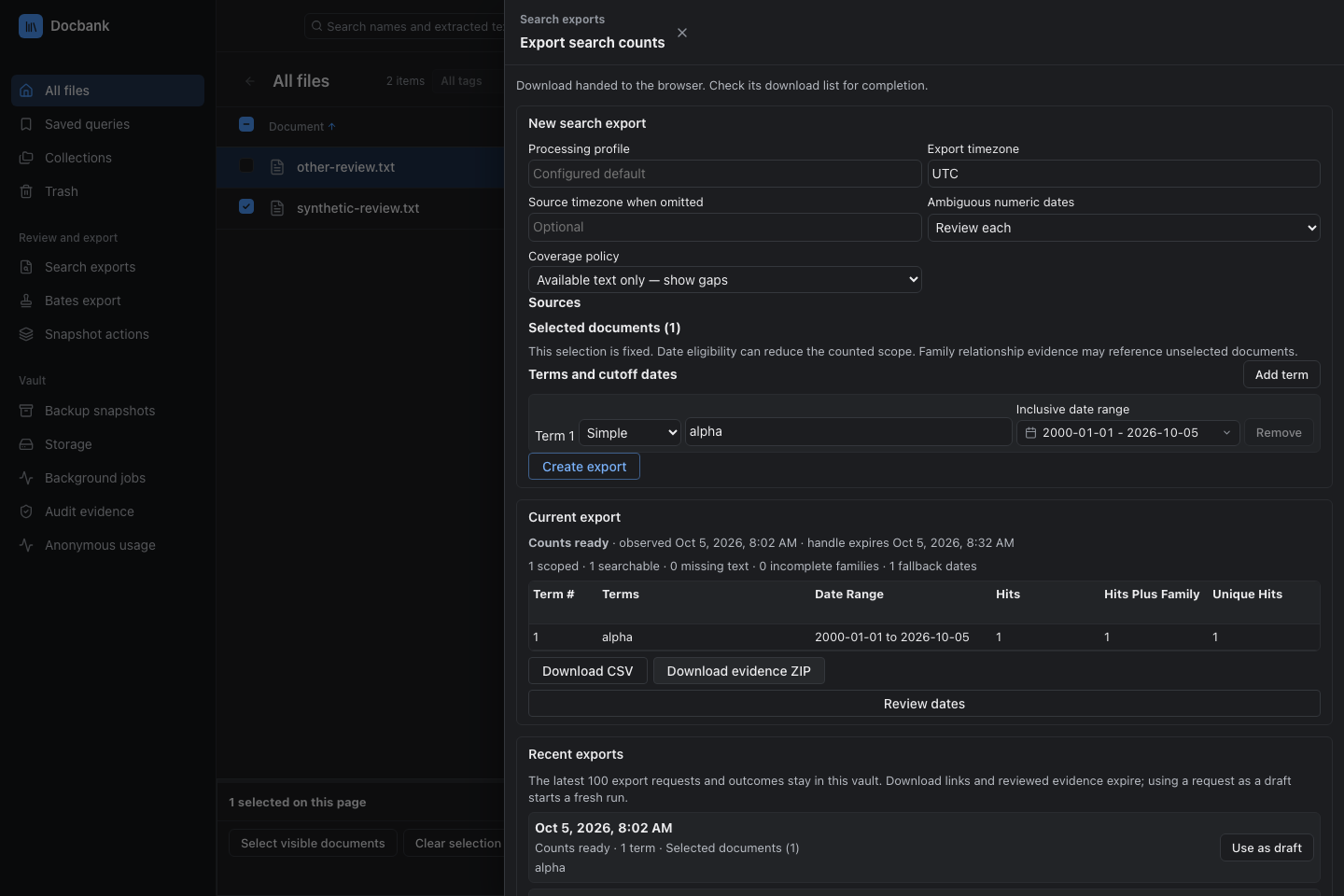
Export dated search counts
Open Search exports in the sidebar to create a CSV of search counts for selected sources and date ranges. Review unresolved dates before downloading the CSV or evidence ZIP. Recent exports keeps the latest 100 requests and outcomes. Use as draft runs a request against current data without its old date choices. See Search exports for the full workflow, count definitions, and expiry limits.
Saved queries and highlights
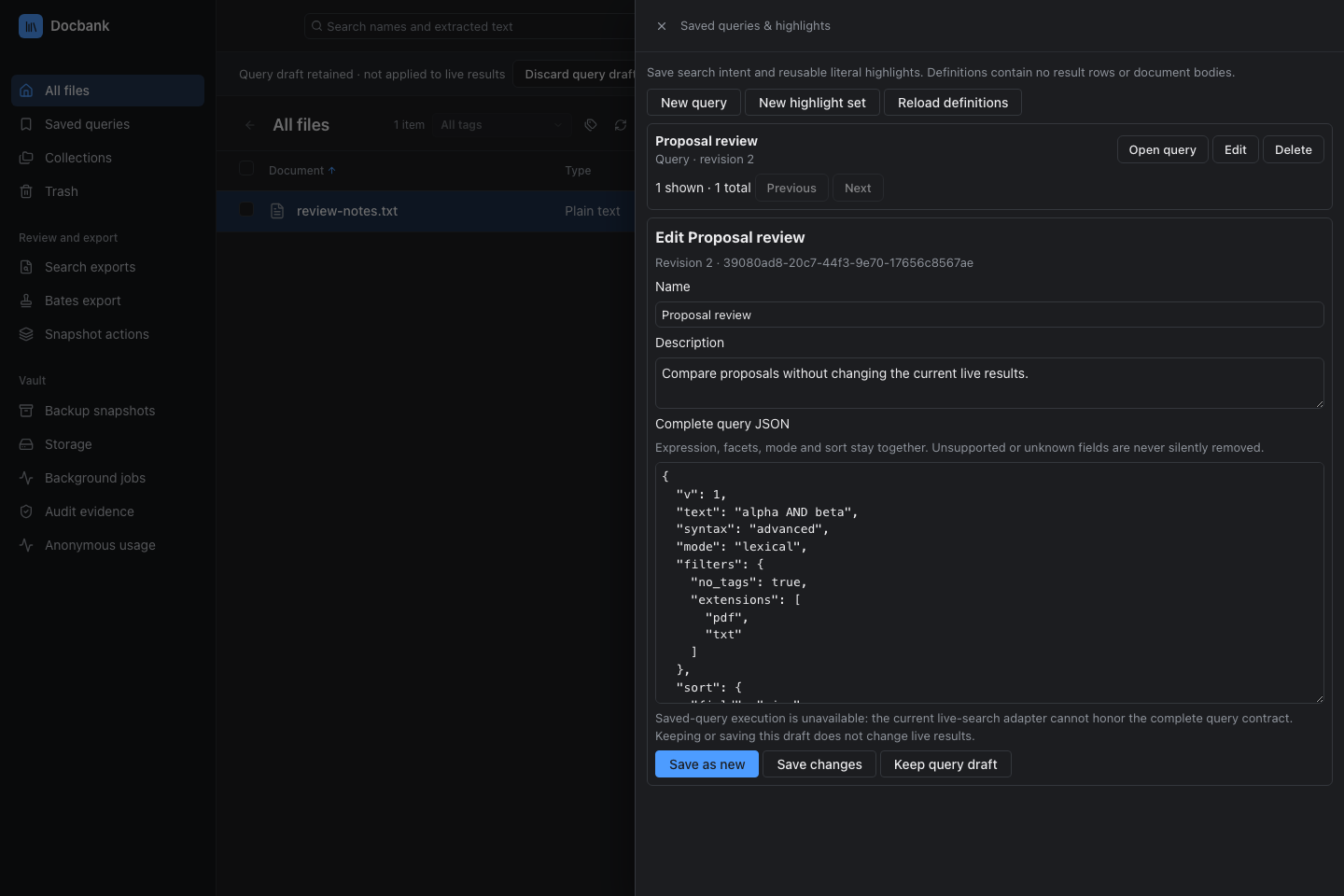
Open Saved queries in the sidebar to manage saved queries and highlight sets. A new query starts with the current search text, selected tag, and display sort. The complete query editor preserves the expression, filters, mode, and sort together. Choose Save as new to name a definition, or Edit and Save changes to update one. The catalog is paginated in groups of 100.
Keep query draft keeps the complete query in the tab and URL fragment.
The fragment contains query text and filters, so treat copied URLs as private.
It does not contain browser-session credentials. Saving a definition does not
replace the kept draft or change the URL. Discard query draft, locking the
tab, or an expired or rejected session clears the draft and its URL fragment.
Drafts do not carry over when you open a new session with docbank web. Save a
named definition before reloading or leaving the session if you need it later.
Saved queries are definitions, not frozen result sets. Opening a definition in the complete query editor and choosing Run query creates a new workspace snapshot from that draft. Keeping or saving the draft alone does not run it or change the current live results. This browser run does not produce the durable saved-run receipt that the authenticated HTTP API exposes. Unknown fields are rejected, not silently dropped.
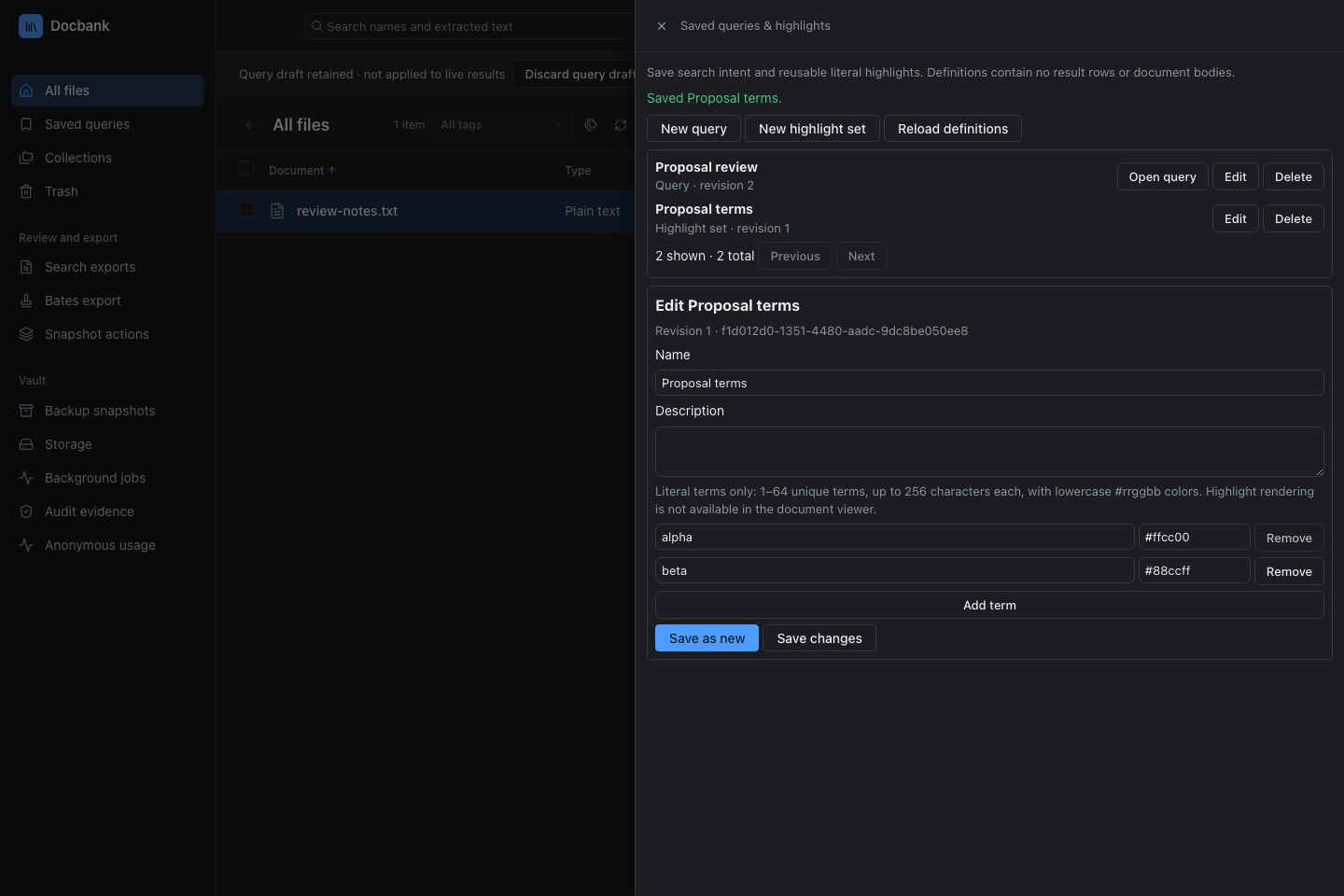
Highlight sets hold 1–64 unique literal terms, each up to 256 Unicode characters,
with lowercase #rrggbb colors. They cannot run as queries. Choose one in a
document's Text tab to apply its ordered colors without changing the saved
definition. Neither result rows nor document bodies are stored in browser
preferences.
Edits and deletions use the definition's inspected revision. A stale response remains visible without automatically retrying against newer state. Reload the definitions and reopen the item before deciding again. Deletion requires a separate confirmation naming the definition, ID, and revision. It never deletes documents or discards the kept query draft.
Move a node to recoverable trash
Choose Move to trash on the selected live file or folder. Docbank opens a confirmation that names the complete virtual path, node ID, and revision being acted upon. A folder and its live descendants move to trash together.
The daemon applies the mutation only if that node revision is still current. If another person, agent, or CLI command changed the node first, the browser keeps the confirmation open and asks you to refresh instead of silently acting on an outdated view. A successful receipt removes the selection and refreshes the current folder, search, or tag view.
This action is recoverable. It does not empty trash, garbage collect content, reclaim packed space, or erase permanent audited history.
Restore from recoverable trash
Choose Trash in the sidebar to inspect the newest 1,000 independently restorable roots. Each entry shows its name, kind, node ID, revision, trash time, and logical size for files. A folder entry represents the complete subtree that left the live tree in that trash operation.
Choose Restore and confirm the inspected revision. Docbank returns the same node and its content to its original live parent when that directory still exists. If the parent is unavailable, restore falls back to the vault root. If the chosen name is already occupied, Docbank adds its normal collision suffix. The completed receipt shows the actual canonical path rather than predicting where the item should have landed.
If the revision changed, the confirmation stays open so you can refresh and review the change. After a successful restore, the browser removes the item from the trash drawer and reloads the tree from its root. This discards cached paths that may no longer match the restored tree.
The browser cannot empty trash. Permanent tree-metadata deletion, subsequent garbage collection, and packed-space reclamation remain CLI or master-authenticated API operations.
Upload verified documents
- Browse to the destination folder.
- Choose the upload button.
- Select one or more files from this device.
- Check each file's result in the upload drawer.
Upload is available only in a live folder, not in search or tag results. The drawer names the destination's directory ID and current path.
Docbank makes two bounded-memory passes over each selected file. The first pass computes the browser's declared SHA-256 while showing hashing progress. The second streams the bytes with visible progress over a dedicated upload channel. Before the upload button becomes available, the daemon proves that channel with a random secret issued through the ownership-pinned CLI handoff. File bytes never use an ordinary reconnectable browser HTTP request.
The channel is bound to one browser session and one daemon lifetime. If it
breaks, the page permanently disables upload rather than reconnecting to
whatever process now owns the loopback port. Run docbank web again to obtain
a newly proved channel. The daemon independently computes the hash and size
and grants node/blob authority only when both match. The browser compares that
receipt again before reporting Added or Already present, then refreshes
the destination by ID.
Files are independent queue entries: one rejection does not make another success ambiguous, and failed entries can be retried. Cancellation can race with a daemon commit whose receipt did not reach the browser, so the drawer labels that item Unconfirmed, refreshes the destination, and directs the operator to retry. Uploads are idempotent, so the retry converges on the stored result. Name/content collisions keep the ordinary ingest suffix behavior rather than overwriting a document. Selecting a local file never changes or removes the source.
Browser upload accepts individual files. Folder recursion, server-filesystem ingest, watched-inbox configuration, and replacing an existing document remain CLI or authenticated API workflows.
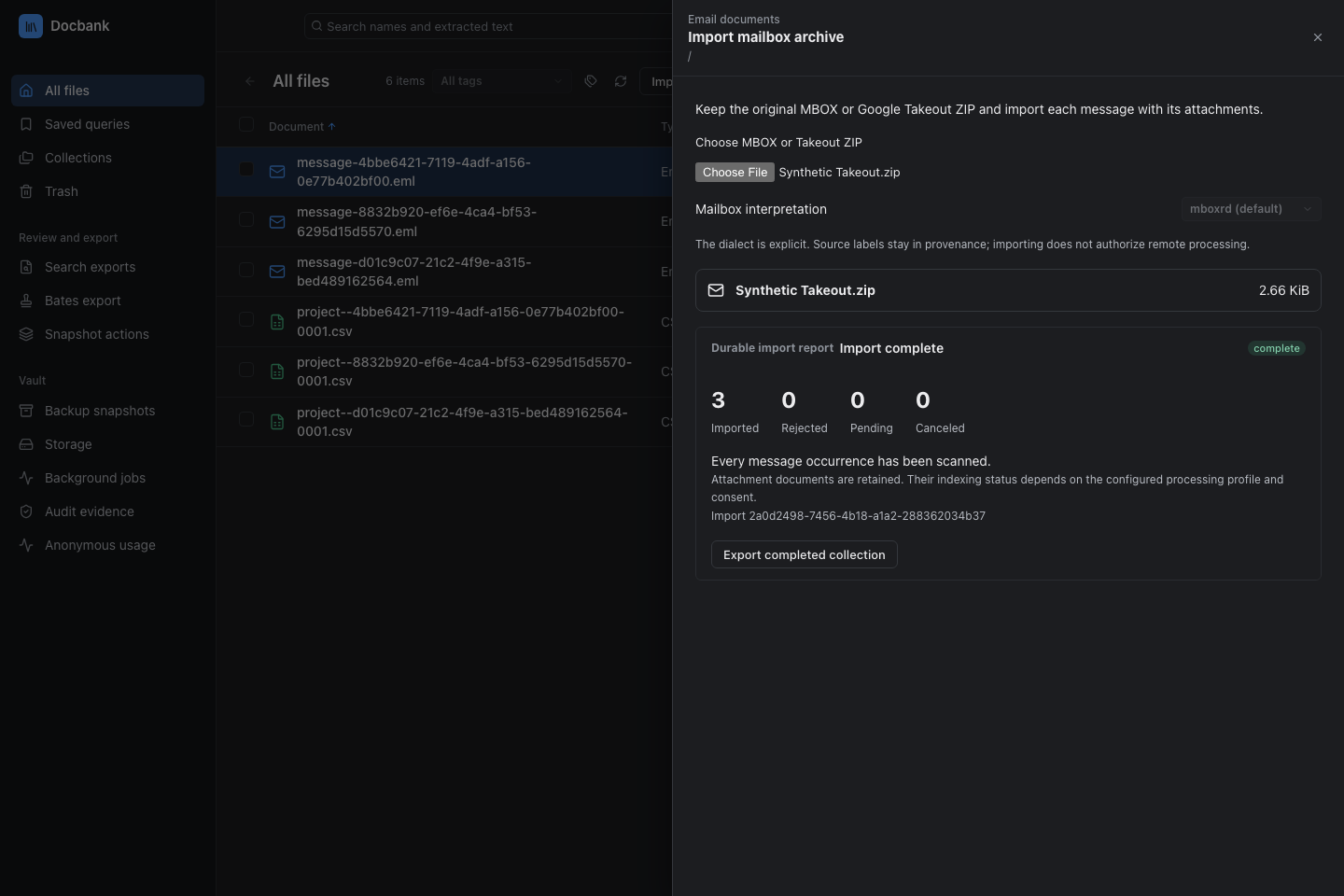
Import a mailbox
- Browse to the destination folder and choose Import mailbox.
- Choose an MBOX file or Google Takeout ZIP, then Upload and preview.
- Review the detected mailbox entries and choose Import messages.
- Follow the imported and rejected counts until the job finishes.
Each message occurrence becomes its own email document. Repeated messages remain separate occurrences, and attachments become child documents. An interrupted import resumes after its last saved message. See mailbox import for CLI status and receipts.
Import load files
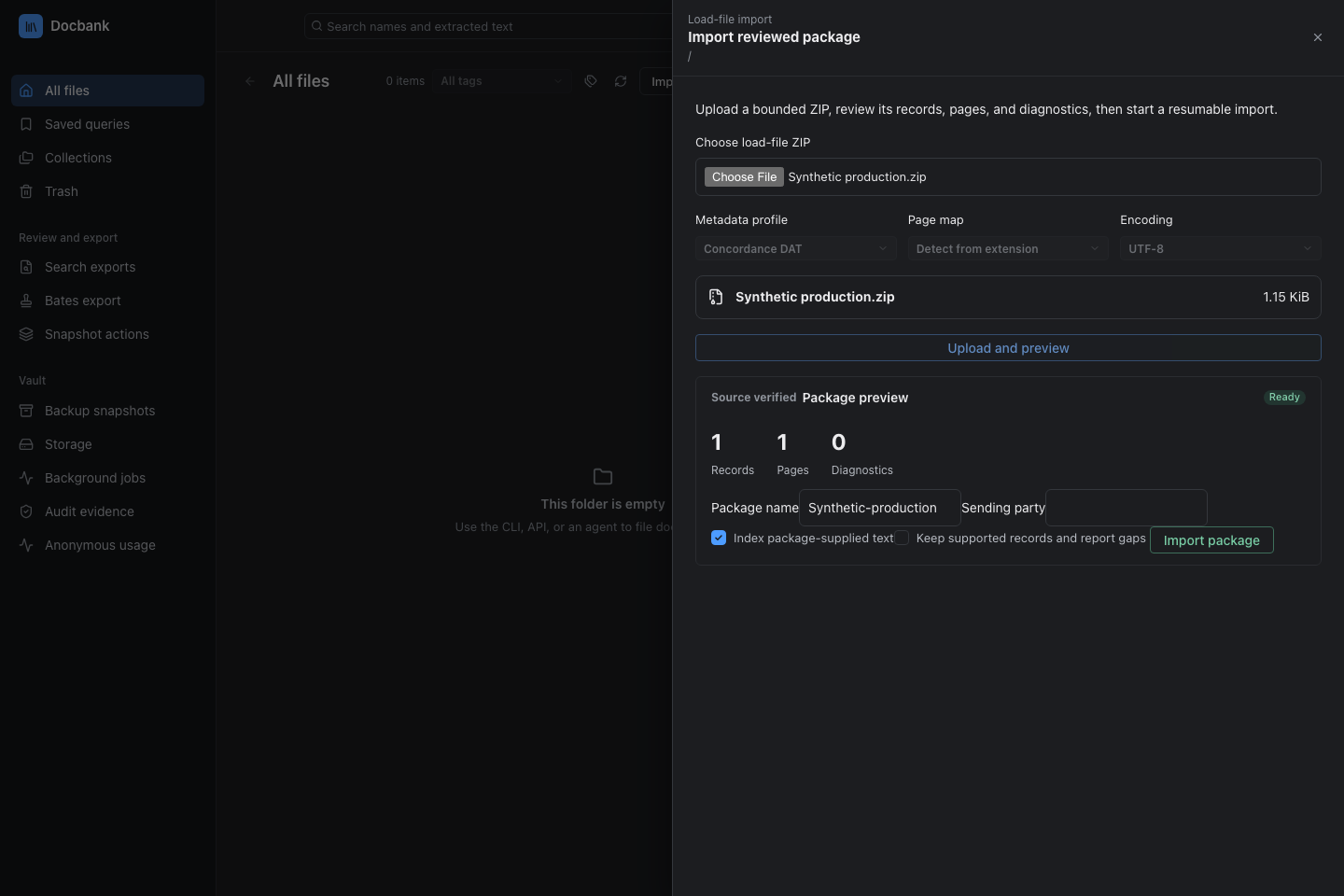
- Browse to the destination folder.
- Choose Import load files.
- Choose a ZIP that holds the DAT or CSV load file, an optional OPT or LFP page map, and the referenced original documents, images, and supplied text.
- Pick the metadata profile, page-map profile, and source encoding, then choose Upload and preview.
- Resolve blocking diagnostics, name the package and sending party, then choose Import package.
The ZIP uses the authenticated upload channel and is stored as a sealed container before preflight reads it. The drawer shows imported, gap, and total counts, plus the operation ID, as the job runs.
Keep supported records and report gaps allows an import to keep records when referenced files become unavailable after preflight. Blocking preflight diagnostics must still be resolved. Without this option, the worker verifies every declared file before creating document entries. Index package-supplied text makes the sender's text files searchable.
Browser row responses omit fields marked sensitive by the retained mapping. Member lists and raw timeline inputs require the daemon API key.
Closing the drawer stops its progress updates. Lock web session revokes the session and cancels unfinished imports it owns. Cancellation keeps committed records and removes unfinished document entries as described in the package command reference.
Process a version and read its text
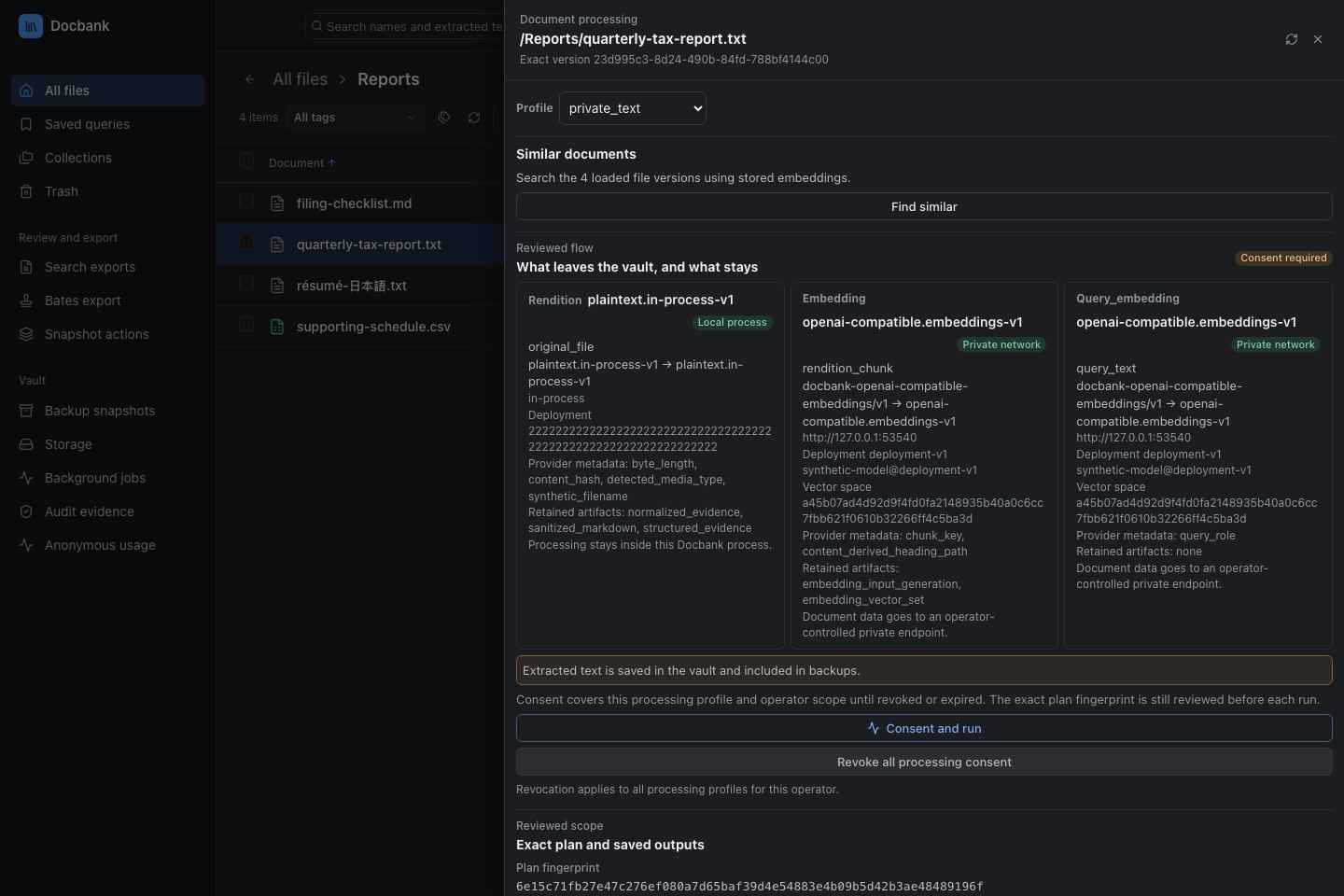
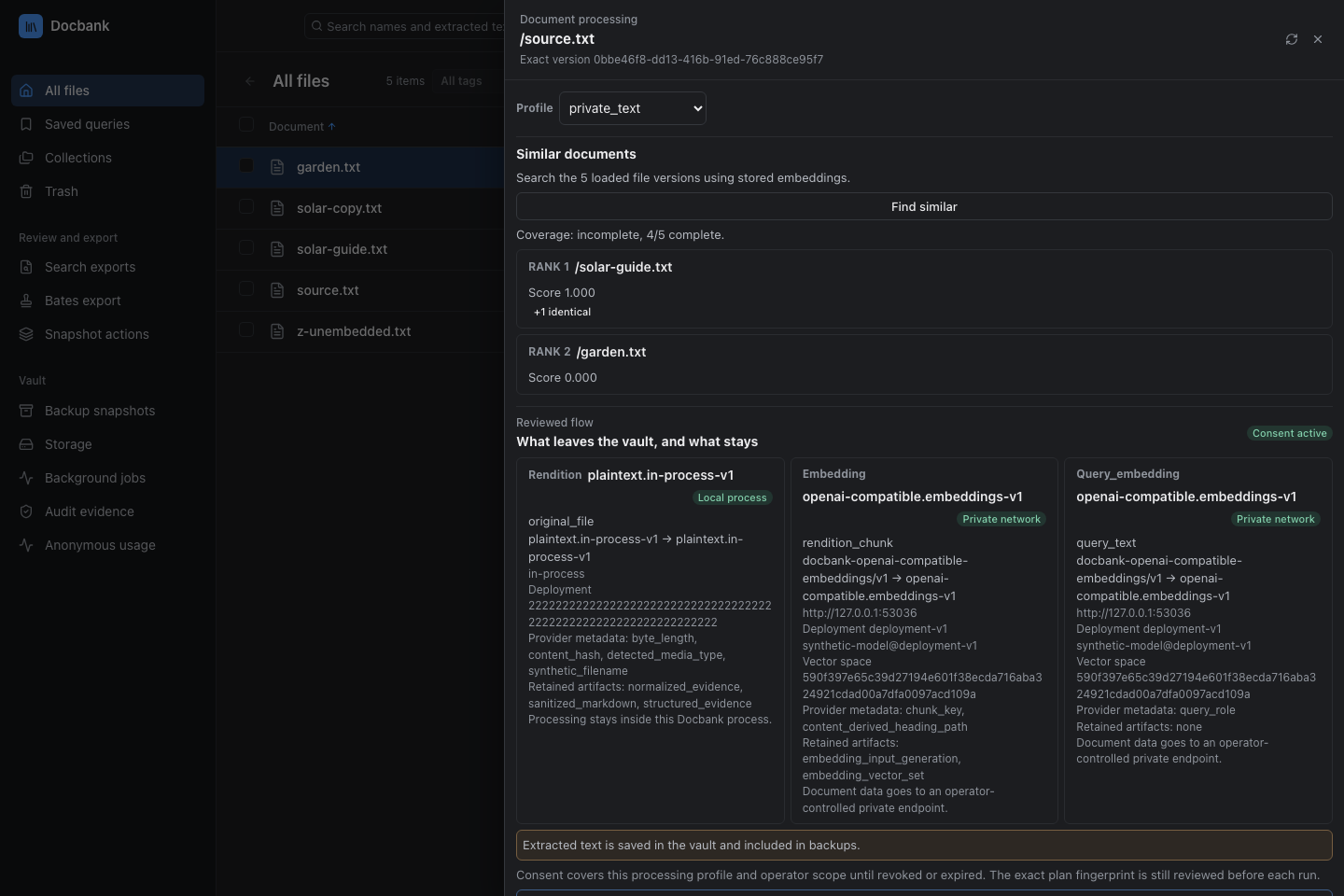
Processing extracts a document's text and stores it. With a configured embedding service, it also prepares the document for search by meaning. Configure a processing profile first. A new vault has none.
- Select a document and choose Process and retrieve in its details.
- Select a profile and review the source version, provider destinations, disclosed content, retained outputs, and estimated work.
- Choose Consent and run only after reviewing that plan. Consent covers this operator and profile configuration for every document, not just this job, until it is revoked or expires.
- Follow the job state and coverage. When available, choose Read sanitized Markdown to read the verified rendition: the extracted text Docbank stored for that version.
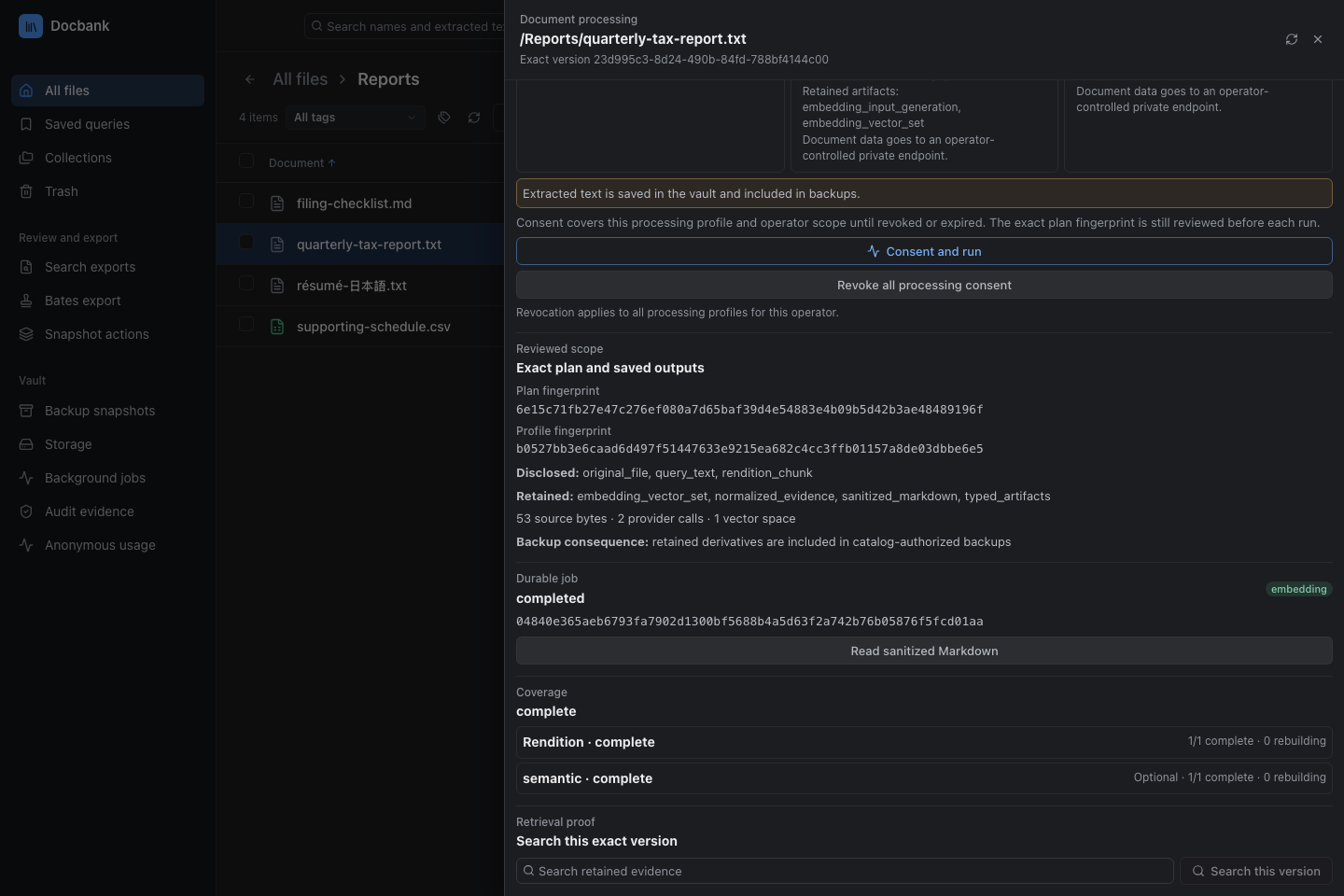
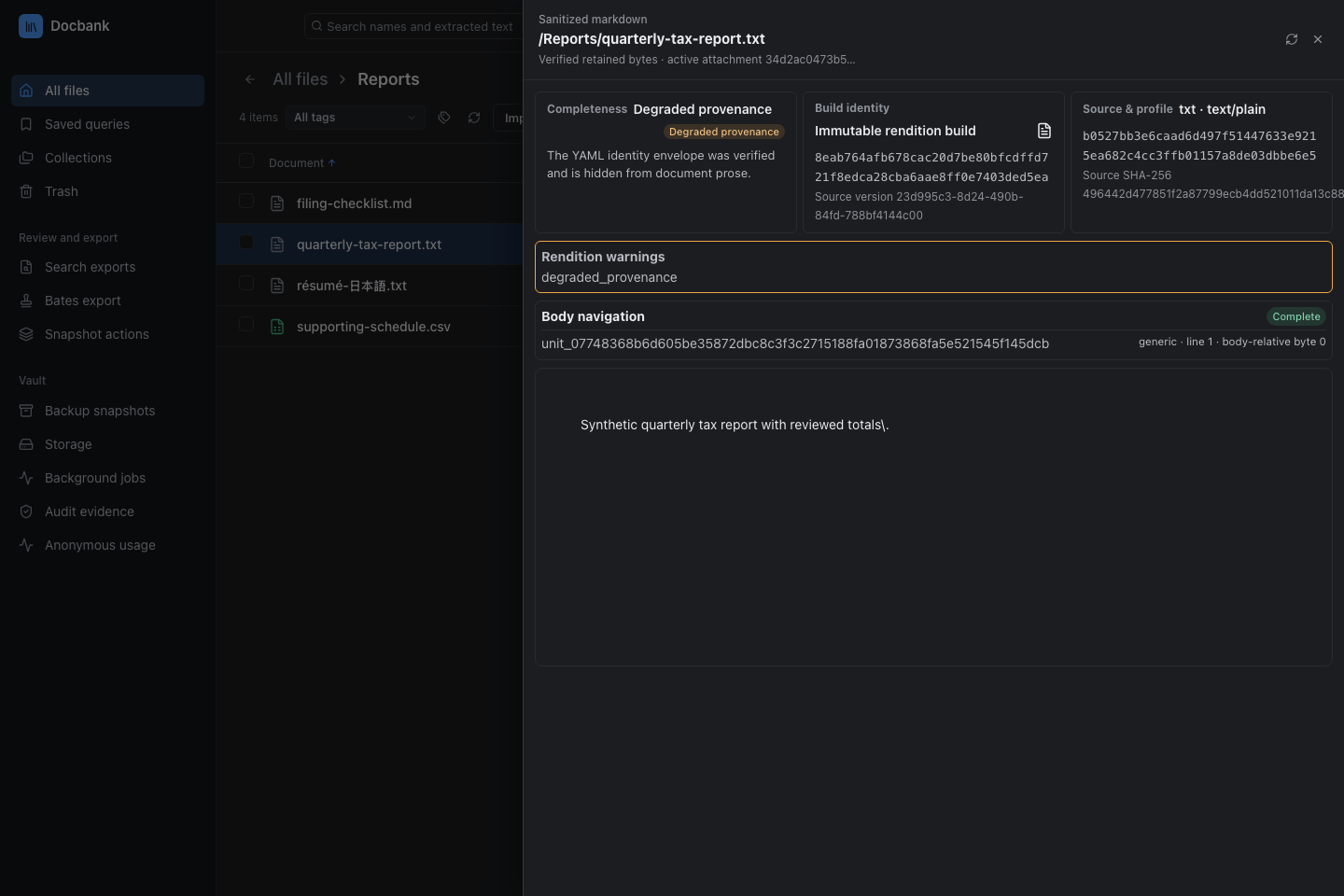
Opening the plan or reading coverage does not start processing. A restored vault needs fresh consent before network processing. The processing guide explains consent and provider requirements. To inspect results without the browser, see CLI coverage and text windows.
Choose a file's Find similar row action to compare its stored embeddings with the file versions loaded in the current view. This calls no provider. If embeddings are missing, build them with a processing run, which has its own review and consent. See Find similar documents.
Download verified content
The selected document card previews PDF and PNG pages, eligible UTF-8 text, and bounded static PNG and JPEG images. Text is rendered as inert text, never as document HTML. Docbank verifies the selected version UUID, size, media type, and SHA-256 after receiving the complete body and before publishing text or an image URL. Unsupported files and text larger than 16 MiB remain available through Download verified original without being decoded in the page.
For PDF files and PNGs with retained page geometry, Preview reads retained pages and images. Other PNGs use the verified original-image preview, including when the optional page runtime is unavailable.
Choose Render page when an image is missing. This requests only that page. Opening the inspector or moving between pages never starts bulk rendering. Rendering needs the optional local page runtime. PDF pages render at 144 DPI. The viewer prefers retained images at that density. Otherwise it displays the highest retained DPI and offers Render page at 144 DPI when the runtime is available. PNGs keep their native physical density. Unsupported geometry, unavailable runtime, partial images, render failure, and a changed source are shown separately. Retained images remain readable when the runtime is unavailable.
Previous page, Next page, and the page selector navigate within the document. Navigation rechecks the inventory to include newly retained images. Fit width and numeric zoom change only its display size. Each page uses its own rotated crop dimensions. The browser checks the actual frame, recipe, image digest, byte length, and decoded dimensions before displaying it. Changing the source, page, session, or tab clears the old image and releases its resources. Cancel render is available for the active request created here. A matching request created elsewhere offers a refresh without taking ownership.
Choose Text to read the verified text rendition for the selected version and processing profile. The browser binds the source, profile, generation, attachment, build, artifact, length, and digest before decoding the text. It reports failed, unprocessed, unconfigured, verified-empty, and unavailable historical results separately. An eligible original UTF-8 text file is used only as a fallback for that same version when no readable rendition is available.
Query text operands are highlighted from the resolved query, not by splitting the expression in the browser. Negated and structured operands are excluded. The browser refuses query highlights if a saved definition revision no longer matches the accepted snapshot. Find and saved highlight sets share bounded, non-overlapping marks and previous/next match controls. All content stays inert.
Previous and next document controls move through the accepted frozen snapshot, including across its existing page cursors. They stop at the snapshot boundary and do not replace an expired snapshot with live results. Duplicates lists at most 16 live documents with the selected content hash. Opening one creates a separately labeled live context. Return restores the frozen selection.
Choose Download verified original on a file to retrieve its selected version. A live row selects its current head. A frozen query row keeps the version captured by that snapshot even when the live head has since changed.
Docbank first copies the object from loose or packed storage into owner-private daemon staging while the browser shows verified byte progress. The selected node revision, version UUID, SHA-256 identity, and size must still agree before that work starts. The current node revision authorizes access to a retained historical version but never changes which bytes were selected. A concurrent replacement, move, or trash operation therefore asks you to refresh instead of silently downloading a different document.
After the complete content passes verification, Docbank issues a one-use download ticket. The browser starts its save only after that check succeeds. Cancellation or a verification failure removes a pending private staging file and publishes nothing to the browser. Changing the selected source or locking the session also cancels pending previews and revokes published image URLs. A ticket identifies only its prepared file, expires after two minutes, and cannot call any other Docbank route. It is not the vault API key or the browser session.
Preparation streams on the daemon and does not buffer the object in browser
memory. It temporarily needs local free space equal to the document's logical
size. Docbank reports that verified bytes were handed to the browser, not that
the browser or operating system completed its final save. Use docbank get
when automation needs a durable receipt after private staging, file sync,
atomic publication, and parent-directory sync.
Inspect immutable versions
Choose Version history on any file to inspect every retained version without losing the current folder, search results, or selected document. The newest version appears first. Each entry identifies whether the content was created, replaced, or restored from a prior version, along with its recorded time, node revision, logical size, and version UUID.
Selecting an entry shows its complete record: full version UUID, SHA-256 content identity, exact byte count, media type, canonical timestamp, introducing operation UUID, and the source version for a revert. The current head is marked. A revert is a new immutable version and does not erase or relabel the earlier one.
Choose Download in the complete-version panel to retrieve that version through the same private staging, progress, terminal verification, and one-use handoff as the current-content action. The version UUID, owning node, SHA-256 identity, size, and current node revision must all agree before preparation begins. Historical versions do not keep a filename timeline, so the browser uses the live document's current name. Version comparison remains a CLI or authenticated API workflow.
The drawer reads at most the newest 1,000 versions and says when older history
exists. Use docbank versions list, its pagination flags, or the authenticated
HTTP API for exhaustive automation. This view does not compare bytes, revert,
or prune history.
Understand where a document came from
Choose Provenance on any file to inspect the origin facts Docbank recorded when it ingested that document. The newest ingest appears first. Each entry shows its source kind and description, original reference, ingest time, and whether it is the active origin or has been superseded by a corrected fact.
Selecting an entry shows its complete provenance identity, ingest UUID, node ID, canonical ingest timestamp, original modification time when one was supplied, and supersession link. The drawer adopts the node state returned with the provenance page, so a concurrent move displays the current canonical path and a trashed document is labeled as trashed instead of keeping an obsolete path from the table.
An original reference records the source at import time. It does not guarantee that the source still exists. It may be a portable relative path from a watched inbox, a local path recorded by an ordinary ingest, or an opaque reference supplied by an embedded application. The browser does not open, validate, change, or retain that external source.
The drawer reads at most the newest 1,000 facts and says when older provenance
exists. Use docbank provenance, its pagination flags, or the authenticated
HTTP API for exhaustive automation. Provenance correction and external-content
pinning are not browser workflows.
Browse tags and search text
Enter a word or phrase in the search box and press Enter. Results can match a live document name or verified extracted text. The Match column identifies which one. Name matches keep their API relevance ranking and appear before content-only matches until you choose a column sort.
Use the tag selector in the browser toolbar without a text query to browse
up to 1,000 live items carrying that tag. The result is read in one metadata
snapshot, so its node state and complete virtual paths cannot mix concurrent
moves, trash operations, or content updates across pages. Trashed assignments
are omitted from this live view and disclosed in its count. Use
docbank tag nodes for the exhaustive paginated list of live and trashed
assignments.
With text in the search box, the same selector requires that tag in addition to the name or content match. The selector displays tag names, but both workflows are bound to the tag's UUID, so a later rename does not change which definition was selected. Changing the selector reruns the current browse or search.
The search mode selector offers Names and text, Auto, Lexical, Semantic, and Hybrid when processing profiles are available. Auto uses Hybrid with an available embedding binding. Without one, the API keeps the request lexical. Semantic and Hybrid require a binding. A profile that can rerank still permits Lexical search without a binding, and Rerank results is opt-in. Base rows appear before reranking settles. Degraded reranking keeps those rows and shows its cause. Other processing failures return to Names and text with a visible explanation.
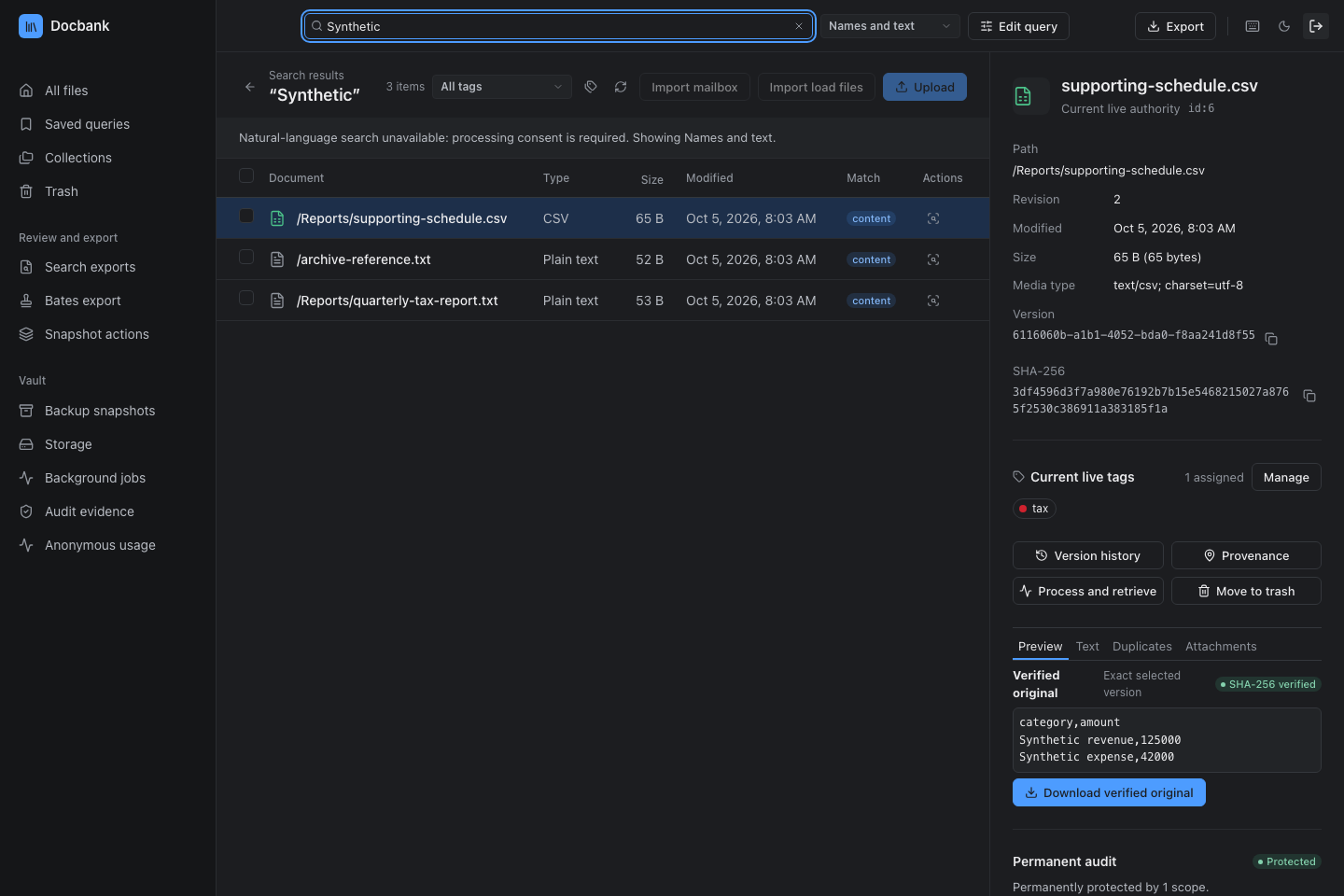
Search results display complete virtual paths and offer the same authority card as ordinary folder browsing.
Clear the search box to return to the selected tag's assignment view, or to
the current directory when All tags is selected. The selector loads at most
the first 1,000 name-sorted tag definitions and discloses when more exist. Use
docbank tag list for the tag catalog. Use docbank search for directory,
media-type, or modification-time filters, structured JSON, or another result
limit. See Searching for limits and truncation.
Read permanent audited history
The authority card checks the selected node's audit membership. A green Protected badge means ordinary deletion, version pruning, garbage collection, and repacking cannot erase that node's history. Not audited means audit authority exists in the vault but the selected node is outside every permanent scope. Dormant means no scope has been enabled.
Choose Audit history on a protected node to open a wide timeline without losing the current folder, search results, or selection. The timeline is newest first and explains the primary change for each event: live and retained-trash paths, content-version transitions, tag definitions and assignments, or provenance. Select an event to inspect its complete event, operation, scope, and node identities; canonical timestamp and origin; before/after revision, path, and version state; and typed tag or provenance payload.
The first page contains at most 50 events. Load older events follows the API's append-stable cursor, so new activity cannot shift or duplicate the history already being inspected. Protection status remains authoritative even when a page contains no events. The web application does not infer protection from an empty or non-empty timeline.
Verify permanent audit evidence
Choose Audit evidence in the sidebar to run the vault-wide permanent audit verifier. The verifier does more than read stored status. Docbank replays canonical audit history against the current node, version, membership, topology, tag, and provenance projections, then reads and recomputes SHA-256 for every unique blob retained by protected history.
A successful result reports the protected and verified blob totals, unique raw bytes, vault and allocation-lineage identities, operation high-water mark, allocation entry count and head, and each scope's terminal entry count and chain head. Copy buttons preserve the complete identities even when they wrap. A dormant vault is reported separately from a failed verification. Metadata, missing-content, corruption, and unreadable-content problems remain visible with the affected hash.
This drawer runs only a fresh proof of current authority. It does not accept a
previous evidence bundle, enroll a scope, or change protected state. Record
docbank audit verify --json outside the vault and later use
docbank audit verify --expected when that external copy must act as a rollback
trust anchor. Closing the drawer cancels its active request. Maintenance
contention or interruption remains visible, and you can retry.
Inspect background work
Choose Background jobs in the sidebar to inspect the jobs owned by the current daemon. Each entry identifies the job name, whether it is running, completed, failed, or cancelled, and its start and finish time. Terminal failures include the daemon's error text so an operator can distinguish an idle system from a watcher, extractor, or automatic packer that stopped.
Use refresh to request a new snapshot. The drawer does not start, stop, retry, or reconfigure work. Use the relevant configuration, CLI, or authenticated API workflow after understanding the failure. Job records belong to one daemon lifetime and disappear when that daemon restarts.
Inspect physical storage
Choose Storage in the sidebar to see how the current vault occupies managed blob storage. The summary separates four related quantities:
- Loose content is the physical inventory of individual raw or zstd files. It can include untracked files or redundant loose copies of packed objects, so it is not an authority count.
- Live packed content is authoritative content stored in immutable pack files. The view shows both its logical raw size and its stored size.
- Pack files is the complete stored payload of every pack, including live and logically dead entries.
- Pending repack is logically dead payload that still occupies those pack files.
Below the aggregate cards, Content stores lists each fixed primary or configured secondary with its filesystem/S3 kind, observed online, unavailable, fenced, or unbound state, catalog-authorized objects, logical and stored bytes, pack count, sole copies, and affected live documents. When an unhealthy store is the only authority for an object, the drawer says how many objects currently have no readable alternative. It never exposes binding paths, endpoints, buckets, credential profiles, or ownership epochs.
Pending-repack bytes have not been reclaimed. This distinction matters when a GC report has removed unreachable catalog mappings but the vault's disk usage has not fallen by the same amount. The percentage beside the pending total shows how much of the current pack payload is dead, not a compression ratio or a promise that every pack is immediately eligible for compaction.
This drawer is read-only and refreshes from the daemon's current catalog. It
cannot pack, garbage-collect, or repack content. Use docbank storage status
for structured or scripted inspection, see Multi-store storage
for repair and placement, and run docbank storage repack when you intend to
rewrite eligible sparse packs and retire their old files.
Inspect backup snapshots
Choose Backup snapshots in the sidebar to inspect the recovery points in
the repository selected by [backup] repo in config.toml. The drawer shows
the repository path and repository ID so you can tell which repository you are
inspecting. Snapshots appear newest first with their tag, ID, creation time,
full or incremental relationship, logical node/file/blob counts, logical
content bytes, and the pack bytes newly added by that capture.
An initialized repository with no snapshots is different from an unconfigured repository, and the browser reports those states separately. The browser does not accept an arbitrary server path, initialize a repository, create a snapshot, verify content, restore a vault, or delete retention history.
Seeing a manifest in this list is not proof that its referenced bytes are
still readable. Run docbank backup verify to check repository integrity, and
periodically restore into a separate vault to rehearse the complete recovery
path.
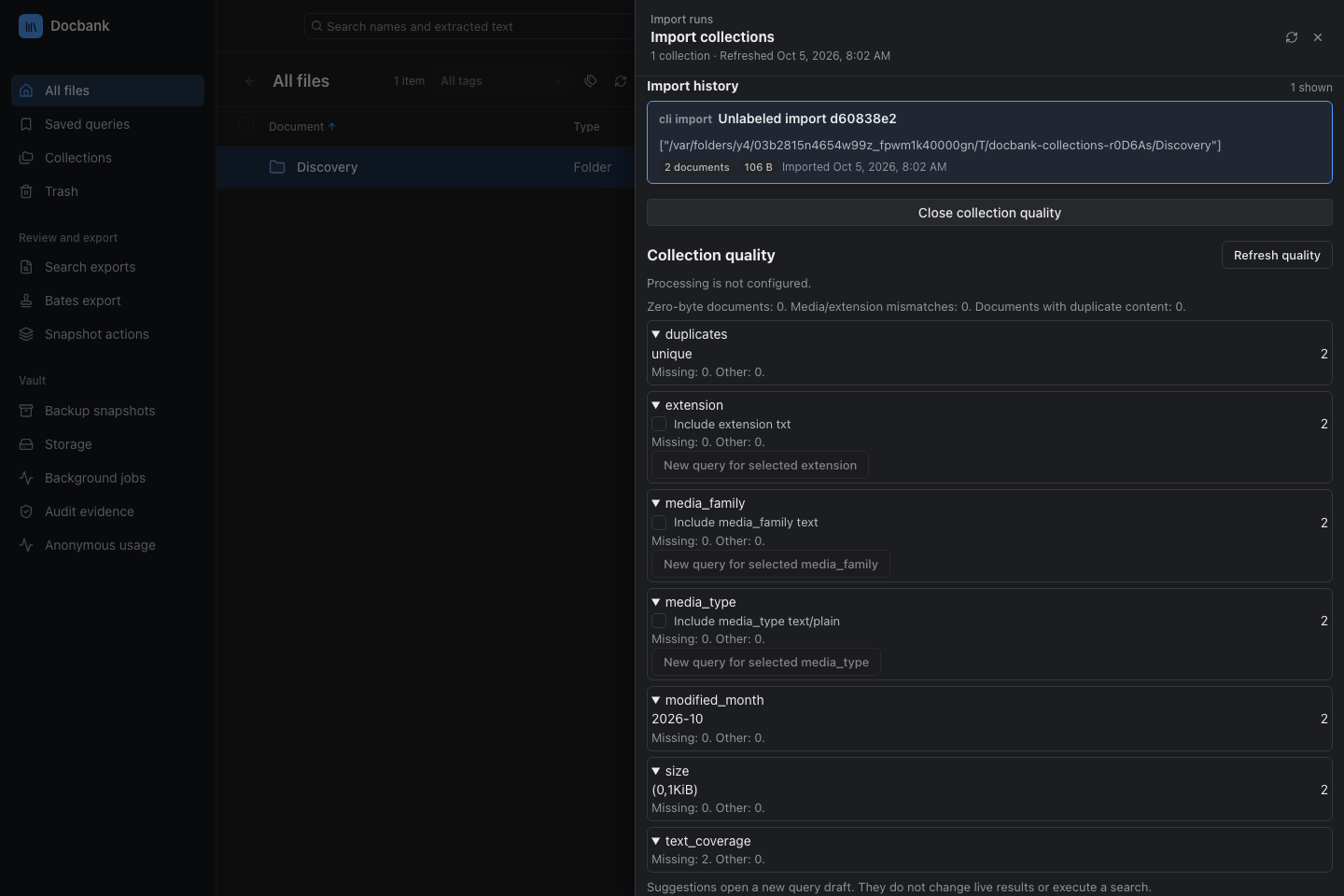
Browse import collections
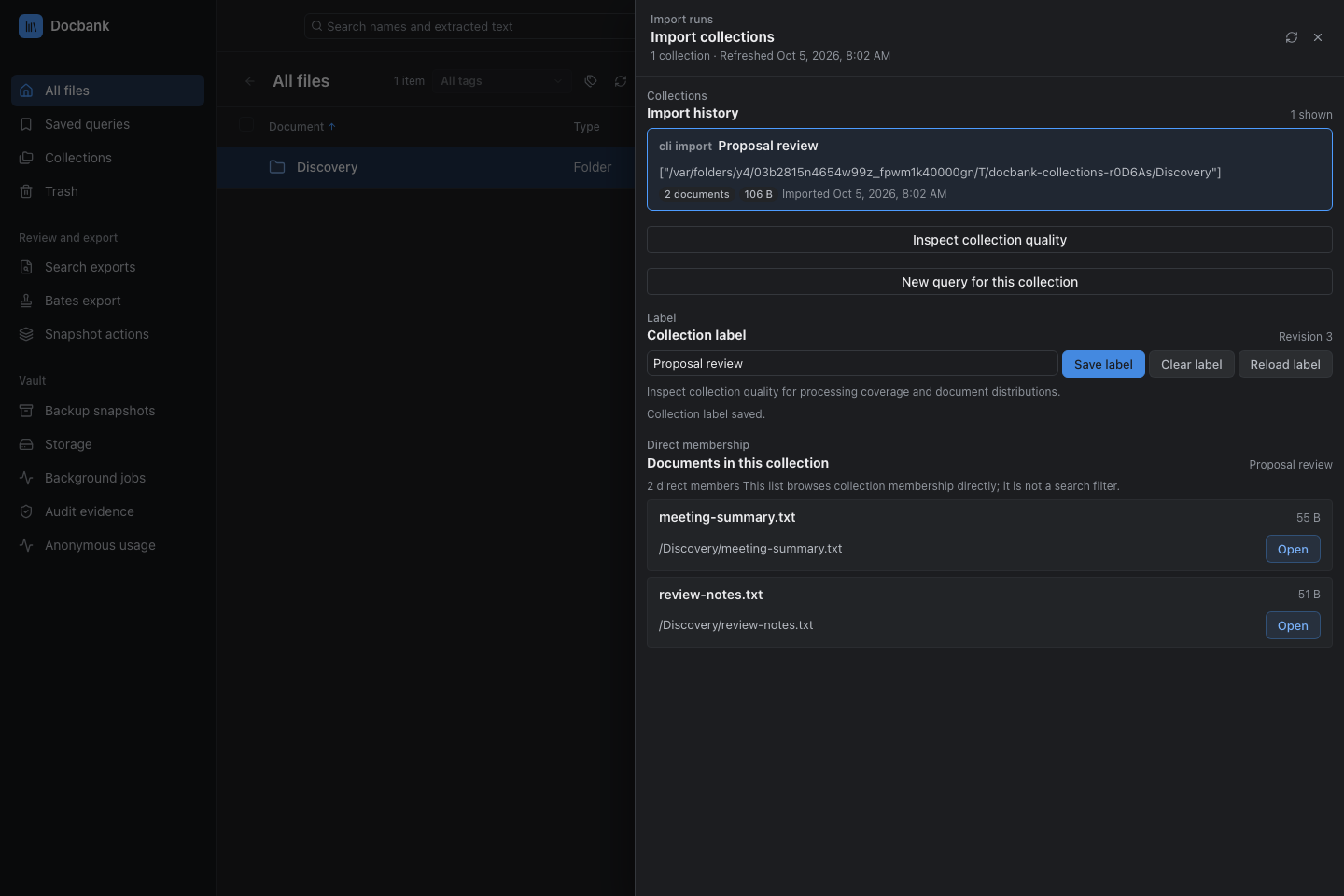
Choose Collections in the sidebar to browse the vault's import groups. Each card shows its label or source description, ingest time, current live file count, and logical bytes. Select a collection to browse its current live members and inspect a document by its node identity. Counts are current membership, not a historical import total. The browser refresh time is separate from the ingest time.
Labels belong to the import group, not its documents. Rename or clear a label under its inspected revision. If another client changes it first, the drawer keeps your draft and reports the conflict. Reload the label before deciding whether to save again. Label changes are unavailable once permanent audit authority has been enabled.
Collection and member lists show at most 100 entries each. Empty groups, failed reads, and truncated lists are reported separately. Use the paginated HTTP API to browse beyond that limit. This is direct member browsing, not a collection-filtered text search.
Choose Inspect collection quality for document distributions, duplicate content counts, zero-byte files, media/extension mismatches, and text coverage. With multiple processing profiles, choose one before reading coverage. Without a configured profile, coverage is unavailable. That does not mean zero failures or complete processing. A configured policy does not mean an extraction adapter is running.
Coverage distinguishes complete, partial, failed, unprocessed, and activated output with no text. Retained searchable output takes precedence over a failed retry. The existing worker rejects blank provider output as a failed attempt. Quality reads are bounded to 250,000 members, a 64 MiB census, and five seconds. An exceeded limit returns an error instead of a partial summary.
Select extensions, media types, or media families and choose New query to open a collection-scoped draft. Multiple selected values use OR. This does not change live results or execute a search. Concentrations describe common values, not document defects.
Browser authentication
When Docbank opens the browser, it writes a small launch page beside the owner-private daemon runtime record and passes only that credential-free local file path to the operating system. Before doing so, the ownership-pinned CLI asks the daemon to exchange its master API authority for a random, daemon-lifetime browser session. The master key stays on that pinned connection and never enters browser storage, a URL, or a child-process argument.
The daemon serves that session from a second listener with a cryptographically
random .localhost hostname and a newly selected loopback port. This browser
origin is independent of the configured API port and unique to one daemon
lifetime. A process that later captures either port therefore cannot leave a
service worker or cached script waiting for a future browser session.
The launch page carries the scoped session and its random upload-proof secret
in a URL fragment. Browsers do not include fragments in the initial HTTP
request. The application removes them from the address bar and holds them only
in page memory. Ordinary requests send X-Docbank-Web-Session. The daemon
accepts that credential for the following operations:
| Permission | Limit |
|---|---|
| Read the tree, nodes, search results, tags, versions, and provenance | Uses the same result limits and document IDs as the ordinary API. |
| Read audit status and history | Does not enroll or change a permanent scope. |
| Verify permanent audit history | Does not run general metadata/content verification or backup verification. |
| Read background jobs and physical storage status | Cannot start or change maintenance. |
| List backup snapshots | Uses only the repository already configured for this daemon. |
| List trash | Returns a bounded list of restorable roots. |
| Prepare, preview, or cancel an exact-version download | Writes only a private temporary file, enforces preview MIME and size limits, and issues one expiring ticket for that file. |
| Plan, preview, run, cancel, and download exports | Owns exact sources, frozen plans, jobs, and verified tickets within this browser session. Download naming cannot select a server destination. |
| Read verified text and exact-content duplicate context | Revalidates the selected source and rendition identities. Duplicate context is bounded to 16 live-current references. |
| Read retained email metadata and MIME parts | Source version, decoder generation, part, role, byte size, and SHA-256 are checked before display. Browser reads cannot start decoding. |
| Read page geometry and images, request or cancel page rendering | Binds the source revision, version, page, frame, and renderer recipe. The inspector requests one page at a time. |
| Move to trash or restore | Requires the selected node ID and its current revision. |
| Add or remove a tag assignment | Requires the selected node ID and its current revision. |
| Create, rename, or delete a tag definition | Rename and delete require the inspected tag revision. Deletion reports the removed assignment count. |
| Read and manage saved query or highlight definitions | Edit and delete require the saved definition's revision. Permanent audit history blocks these writes. |
| Read collections and their members | Returns bounded lists of live import membership. |
| Set or clear a collection label | Requires the inspected collection-label revision. |
| Create and page a frozen query snapshot | Uses complete validated query intent. Handles remain bound to this session and daemon lifetime. |
| Apply a tag to an exact frozen population | Requires captured node revisions, checkpoint readback, and confirmation. Retries preserve the original operation identities. |
Use the bookmark button to manage saved queries and highlights or Edit query to validate and run a complete query.
Upload uses a separate WebSocket: a connection that never reconnects during the session. The browser must prove it holds the upload secret before sending any file bytes. Upload can create only file nodes beneath the live directory selected in the browser. The daemon independently checks the caller-declared hash and size, as it does for other remote writers.
These permissions do not allow emptying trash, document mutations other than the revision-checked tag workflows above, audit enrollment, backup creation, restore, maintenance, configuration changes, or access to general API endpoints. A browser session never receives the master API key. See the HTTP API for the route and credential contracts.
The lock button revokes the session in daemon memory and clears the page.
Every remaining browser session and its dedicated browser origin disappear
when that daemon stops. Run docbank web again to create a fresh origin and
session against the ownership-proven daemon.
Closing the browser tab does not stop the daemon or revoke other sessions.
Use the lock button when the current tab should lose access immediately, and
use docbank daemon stop when every session and the daemon itself should end.
The launch file remains beneath $DOCBANK_HOME/web-launch/ with the same
owner-only Unix permissions or Windows DACL as the runtime record. It is
runtime state, excluded from snapshots, replaced by the next launch, and
removed when the daemon stops.
Use docbank web --no-browser only when another local program must open the
URL. That output contains the live browser credentials. Do not put it in shell
history, logs, screenshots, issue trackers, or chat.
Current limits
Folder, tag, search, and recoverable-trash views show at most 1,000 rows and
say when more exist. Use CLI or HTTP pagination to list complete folders, tags,
and trash. Search has no continuation cursor. Narrow incomplete results as
described in Searching.
It uses the same name and verified-text matching rules as docbank search.
Results initially preserve the API's relevance ranking. Choosing Document,
Size, or Modified changes to that column order. Document compares the complete
paths shown in search results rather than only their basenames.
Refreshing a folder resolves its node ID, current canonical path, and children in one metadata snapshot, so a concurrent CLI or agent move cannot leave the browser constructing child paths beneath an obsolete name.
The current web application does not compare versions, recursively import folders, edit, revert, prune, move live nodes between folders, empty trash, enroll audit scopes, or run maintenance, backup creation, backup verification, general metadata/content verification, or restore operations. Frozen-query tag actions are capped at 250,000 documents. Use an authenticated API client for larger or different bulk workflows.
Original-file previews support UTF-8 or ASCII text up to 16 MiB and static PNG and JPEG images up to 32 MiB. PDF and PNG page rendering accepts sources up to 64 MiB within the page runtime limits. Empty or larger sources offer verified download without a page preview. Other document, image, audio, video, and archive formats use verified download.
If a page reports that its browser session or upload channel expired, ended,
or was rejected, run docbank web again. Neither credential nor the upload
channel survives daemon restart, and the previous random .localhost origin
is not reused.